

Analytics
To check usage of your deployment you can go to its analytics.
Simply click on “Analytics” on the top right corner of that deployment.
Analytics Dashboard
Section titled “Analytics Dashboard”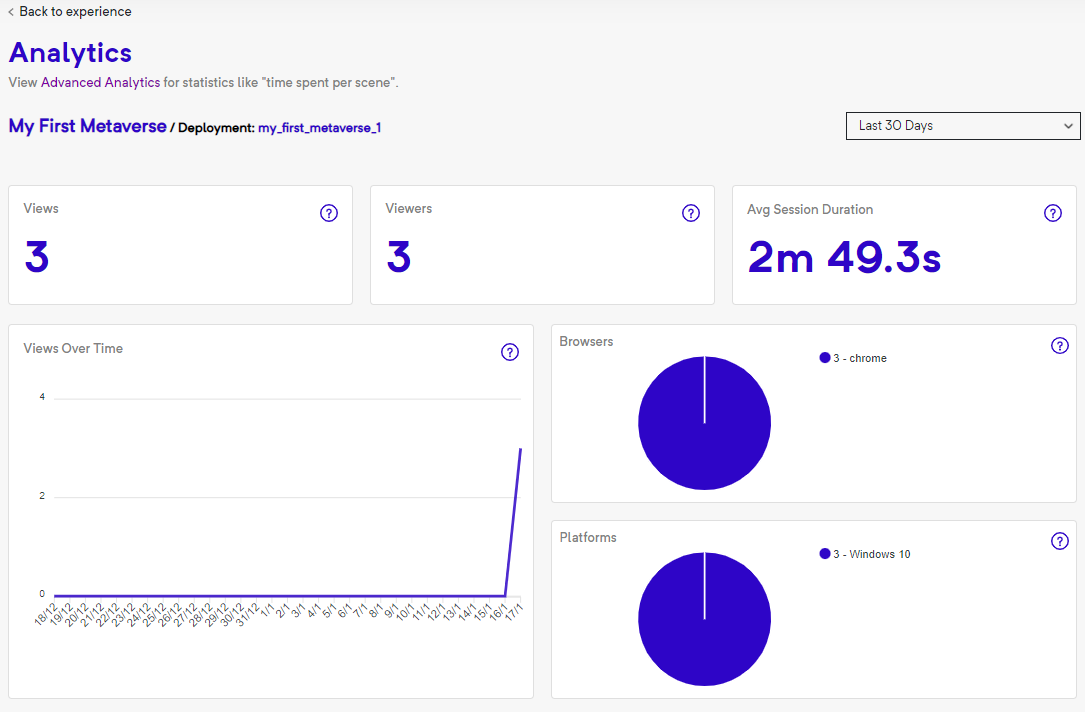
Analytics - Showing views, viewers, average session duration, views over time, browsers and platforms
The sections here provide you with:
The number of times your deployment is viewed. Check this to see how views are counted: #how-are-views-counted
Viewers
Section titled “Viewers”The number of viewers who have accessed your deployment.
Average Session Duration
Section titled “Average Session Duration”The average duration, viewers have spent viewing your deployment.
Browsers and Platforms
Section titled “Browsers and Platforms”Provides details about browsers your audience uses to view your experience, ex: Chrome, IE explore, Firefox, Opera, Safari and so on. Whereas, platforms will provide details if the viewer has used a desktop, laptop, tablet or mobile to view your experience. The browser and the platform also affect some autogenerated variables.
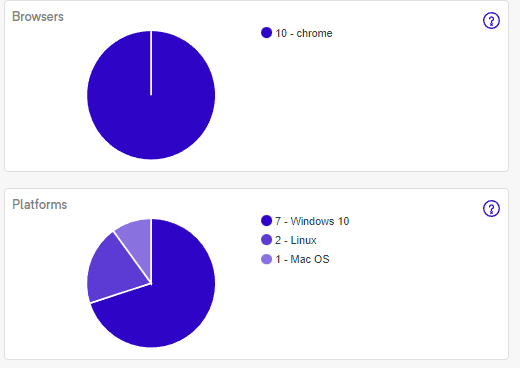
Browswer and Plaforms
Views over Time
Section titled “Views over Time”This graph shows your views over time.
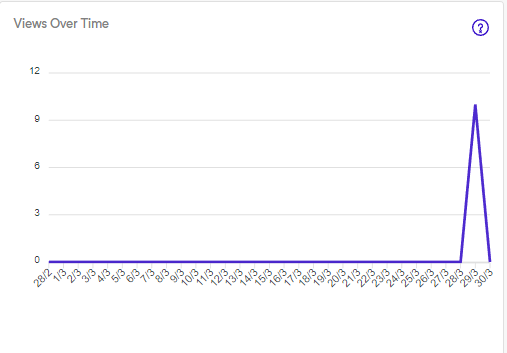
Views over Time graph
Sessions
Section titled “Sessions”You can check session details in this table
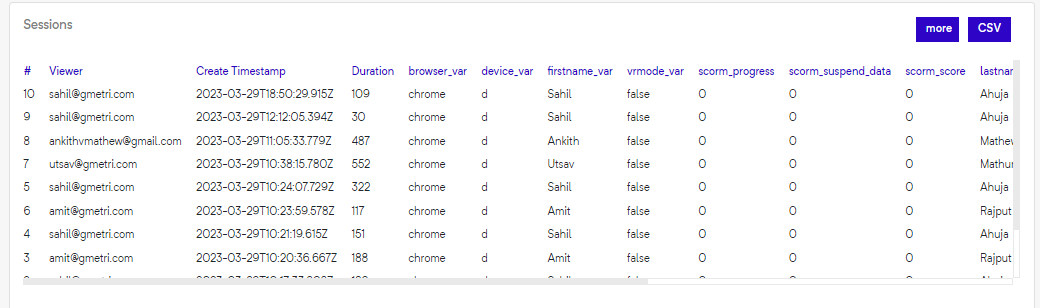
Sessions
You can expand this section to a new page, with more details, by clicking on the more button. This page is pre-authenticated and the URL can be shared publicly.
Sessions by Location
Section titled “Sessions by Location”This map shows you the (approximate) location of your viewers on a world map.
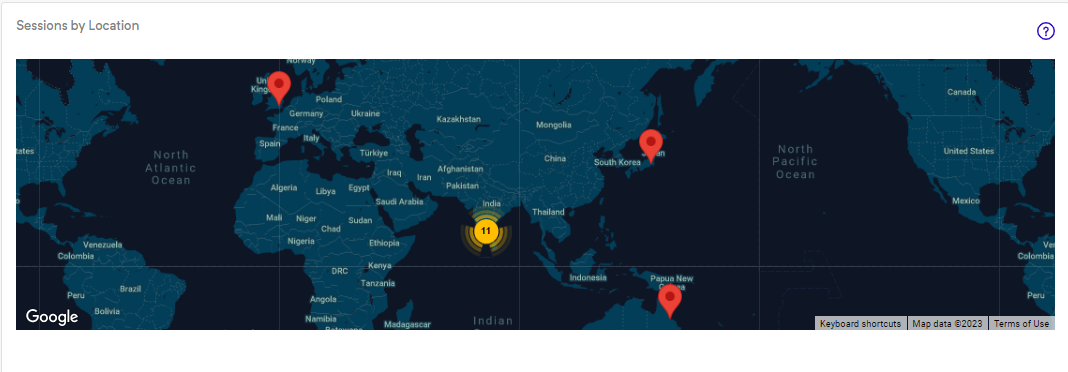
Analytics - Location
Filtering results for time periods
Section titled “Filtering results for time periods”You can filter the analytics for different time periods, like the last 7 days, last 30 days, or last 90 days. You can also customize the dates to choose a specific range.
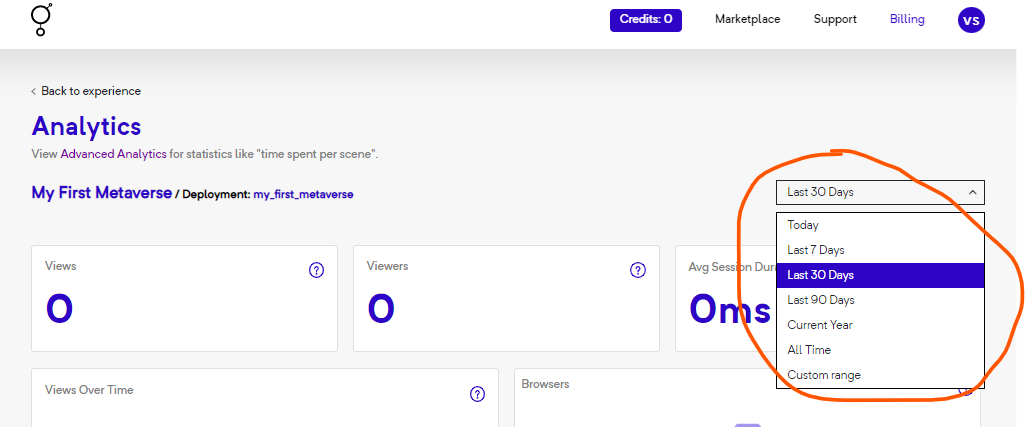
Analytics - Filtering results for time periods
Rules Funnel
Section titled “Rules Funnel”Rules funnel show you the frequency of triggering of different rules. Only those rules are tracked for which you turn on the “Analytics” checkbox.
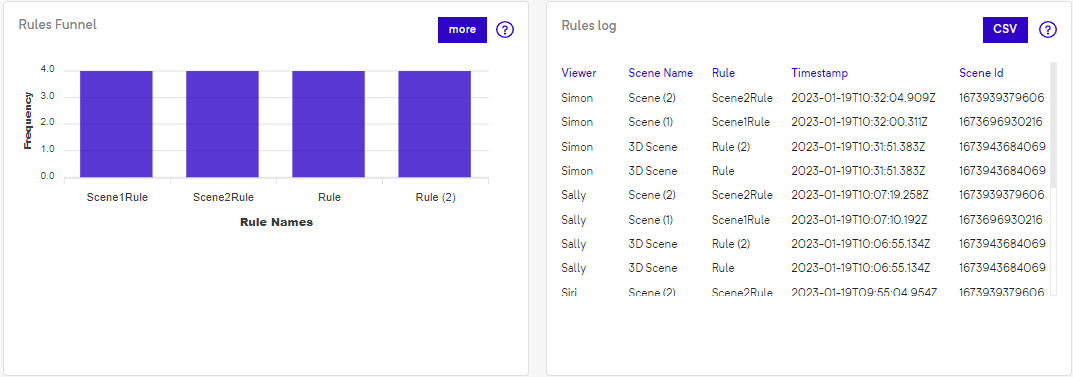
Analytics - Rules Funnel and Rule Log
When you click “More”, a new page opens up that provides a detailed graph as below which can be filtered according to the time period that you wish to collect the data for.
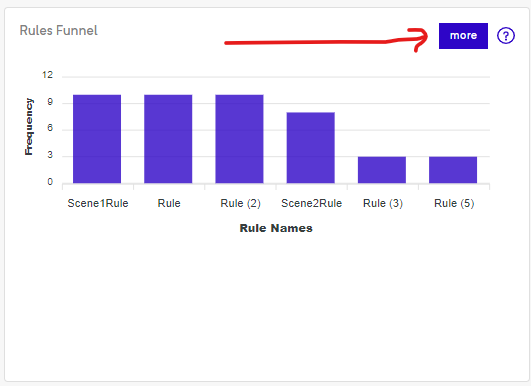
Analytics - Rules Funnel - More
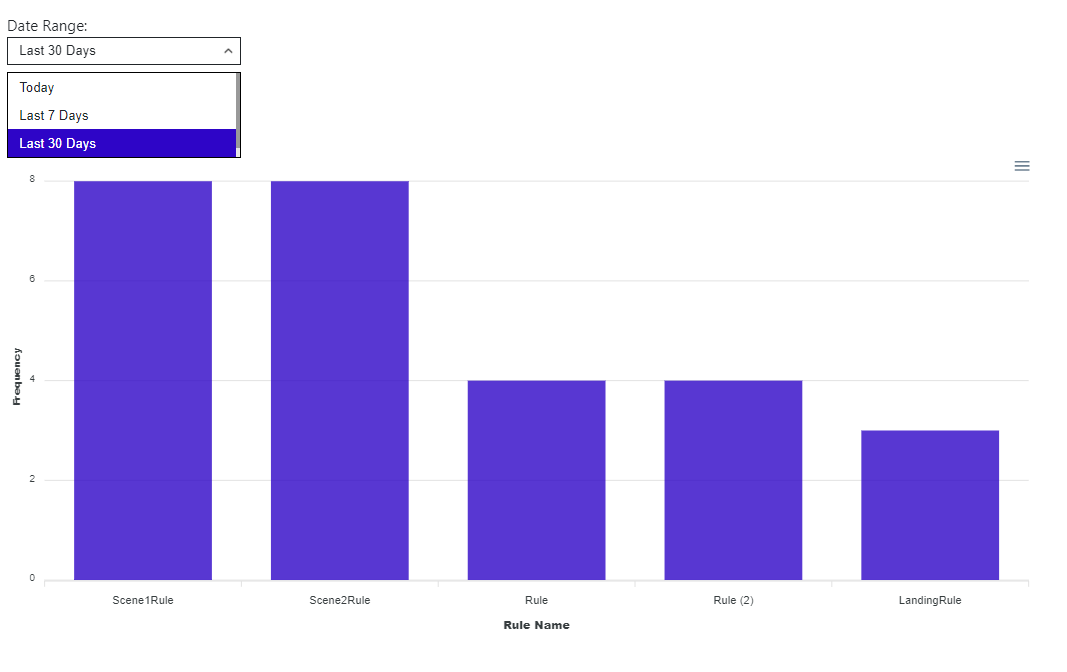
Analytics - Rules Funnel - more page
Rules Log
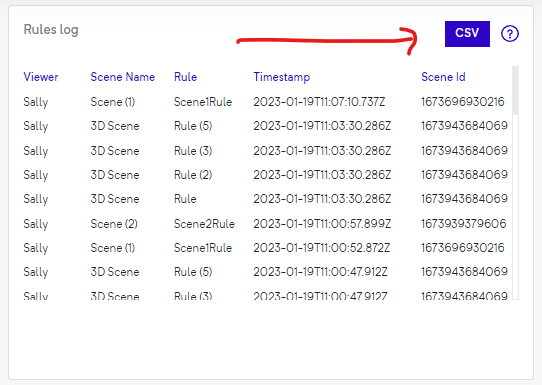
Section titled “Rules Log”This is a log of all rules triggered by everyone who visited this deployment. Note: only those roles are tracked for which you turn on the “Analytics” checkbox.
You can download this into a CSV file by clicking on “CSV” button.
Leaderboard
Section titled “Leaderboard”Leaderboard shows you the scores of all viewers who access this deployment in the form of rank list. To enable this section, you new to add a “Score” element to your experience.
You can expand this section to a new page, with more details, by clicking on the more button. This page is pre-authenticated and the URL can be shared publicly.
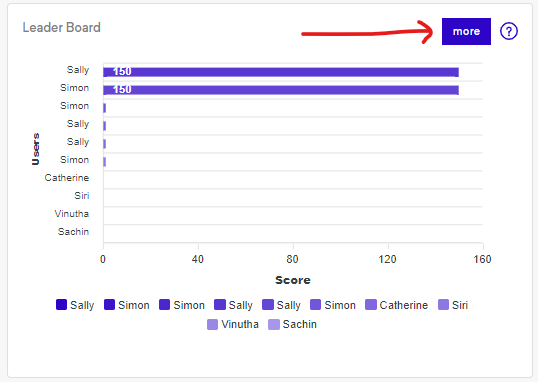
Analytics - Leader Board
Variable Stats
Section titled “Variable Stats”This section will provide you the statistics of the variables used in an experience.
By clicking on the dropdown menu, you can select the variable of interest and view its respective statistics.
Additionally, you have the option to download the statistics in CSV format for further analysis.
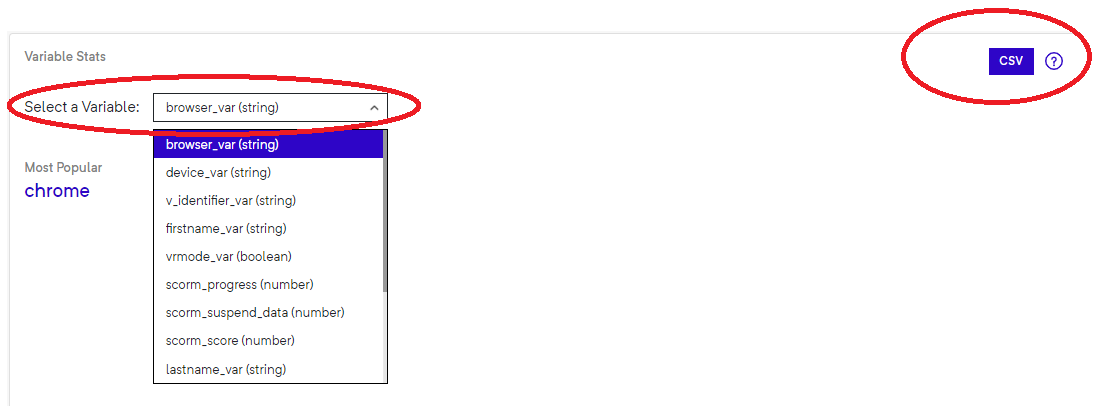
Variable Stats