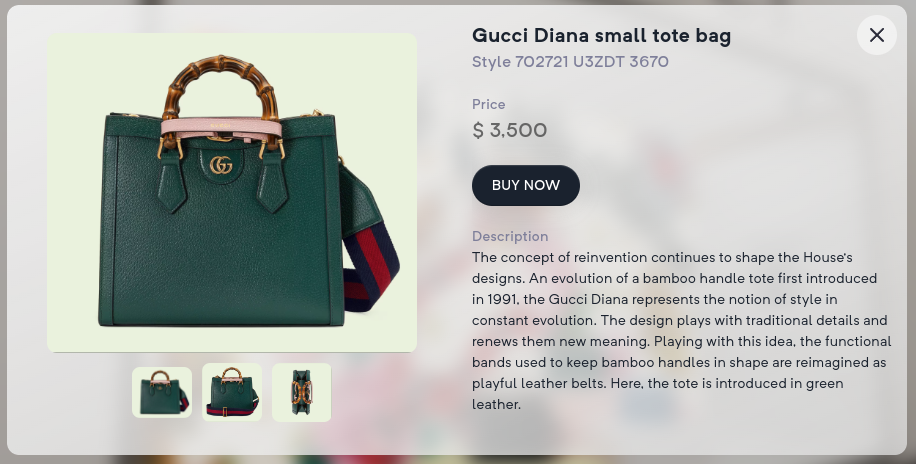
Shopify Integration
Shopify Integration
Section titled “Shopify Integration”This tutorial will demonstrate how to integrate a Shopify Storefront within a GMetri experience.
Prerequisites
Section titled “Prerequisites ”There are a few steps that are required to enable Shopify Storefront API access on your shopify account.
- Login to you Shopify account using the admin account.
- From your Shopify admin, click Settings > Apps and sales channels.
- Click Develop apps.
- Click
Create an appbutton on the top right and enter a friendly name. - Select the app created in the previous step and click
API Credentialstab. - Click API credentials.
API credentials
Section titled “API credentials ”On the API credentials page,
- Click on
Configure Storefront API Scopes - Check all options available and save. These permissions allow GMetri experiences to pull information about products and manage cart and checkout sessions.
- Now click on
Install appbutton and accept the terms and conditions. - Note down the API access key generated, this will be required later.

Domain name
Section titled “Domain name ”Shopify creates a unique domain name for each of the stores created on their platform. The domain name is required in conjunction with the API credentials to enable a successful integration.
- From your Shopify admin, click Settings
- Your domain name will be printed on the top left of the page. Note it down for later.
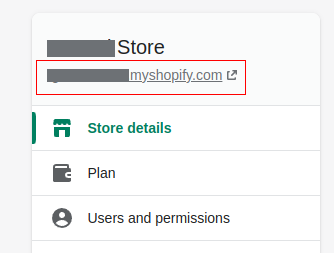
Getting the product SKU
Section titled “Getting the product SKU ”To get a product’s SKU
- From your Shopify admin, click Products > Select a product
- Note the URL in your browser window. The product SKU is the last part of the address like so:
- If the URL in address bar is:
https://my-store.myshopify.com/admin/products/7309350764729 - Then the product SKU is
7309350764729
- If the URL in address bar is:
- Note the product SKU for later.
Integration with GMetri
Section titled “Integration with GMetri ”If you are the admin or a collaborator, then you can configure Shopify integration with GMetri.
- From you GMetri homepage, open the experience editor.
- From within the editor, click Settings > E-Commerce > Select
Shopifyfrom the dropdown - Enter the Access token noted during Shopify API credentials configuration
- Enter the domain name noted during Shopify domain name configuration
- Check
Show Cart Iconto enable showing a cart counter and checkout link to the shopify store from within a GMetri experience.
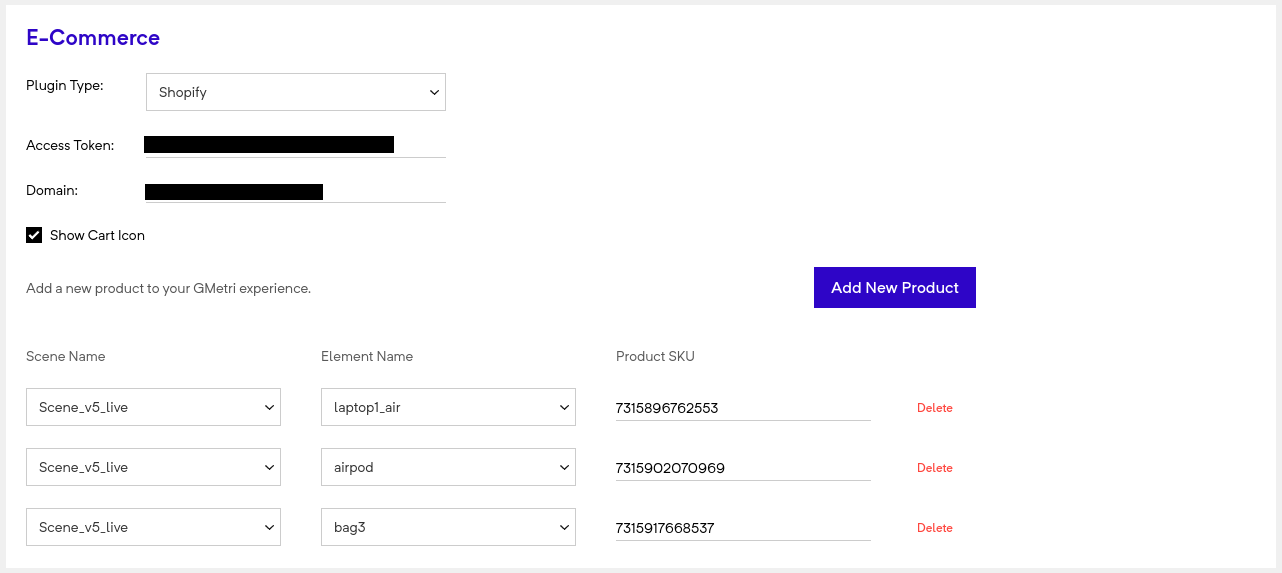
To link shopify products to interactions inside the experience, you need to follow the below steps:
- Click on
Add New Productbutton - Select a scene from the
Scene Namedropdown. This the scene where the integration will work. Integration can be done with multiple scenes within a single experience. - Select an element from the
Element Namedropdown. - Enter the Product SKU in the text field next. Ensure that the product SKU is correct.
Above setup will internally create a set of rules to open and pull information for the relevant products from shopify storefront whenever an element is clicked. The resulting rules would read out like so: “When Laptop-Image is clicked, then show product with SKU”
Testing the integration
Section titled “Testing the integration ”- From your GMetri editor, close the Settings page.
- Click on
Playicon on the top right of the page and open a preview link - Click on an element which was selected in the Ecommerce section.
- This should open up the product page with information from the shopify store, including pricing details, pictures and variants.
- Try adding the product to cart, increase and decrease the quantity of purchase.
- Click on
Cart Iconon the top left of the page to goto shopify store and start the payment process.