

Viewport Properties
Viewport Properties is an editor panel that facilitates the movement and placement of items within your experience.
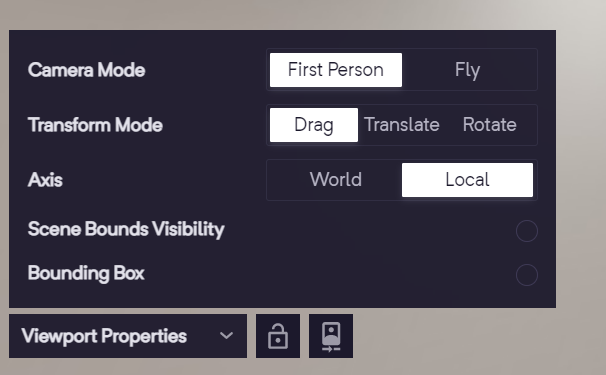
Viewport properties
Camera Mode
Section titled “Camera Mode”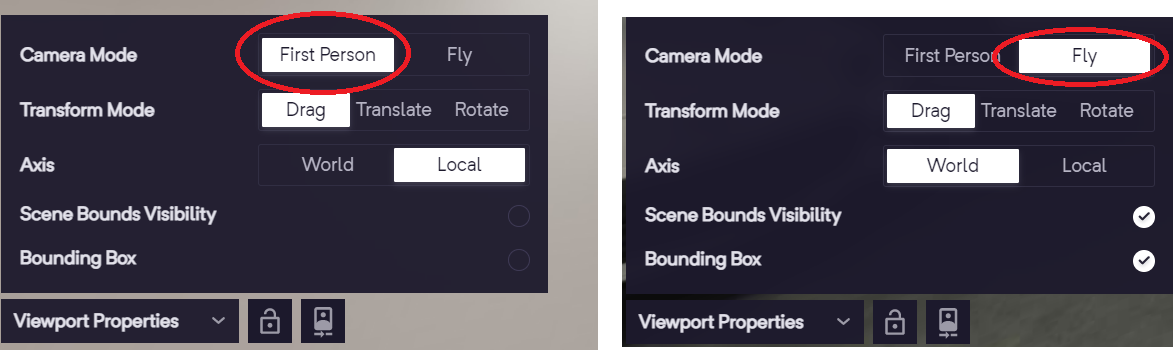
First Person Camera Mode
Section titled “First Person Camera Mode”First person camera mode
First person mode allows you move along the plane at a given height using the WASD or the arrow keys. You can control this height from the Top Bar.
Fly Camera Mode
Section titled “Fly Camera Mode”Fly Camera Mode
In Fly Mode, you can:
- Use left click and drag to orbit around a point
- Use scroll bar to move forward and backward
- Use right click and drag to pan
Transform Mode
Section titled “Transform Mode”The transform how you move elements in the editor.
There are 3 transform modes:
- Drag: Moves the element across a spherical plane with the camera as the center
- Translate: Shows the Transform arrows that allows you to move the element across
x,yorzaxes orxy,yzorzxplanes. - Rotate: Shows the Rotation controls that allow you to rotate the element across
x,yorzaxes.
You can refer to the below article to understand how this mode works in a 3D space.
Transform Mode
The translate and rotate controls can be relative to one of two available axes - World or Local.
Axis
Scene Bound Visibility
Section titled “Scene Bound Visibility”You can change the visibility of the scene boundary using this setting.
You can refer to scene bounds in the below article to understand how they work
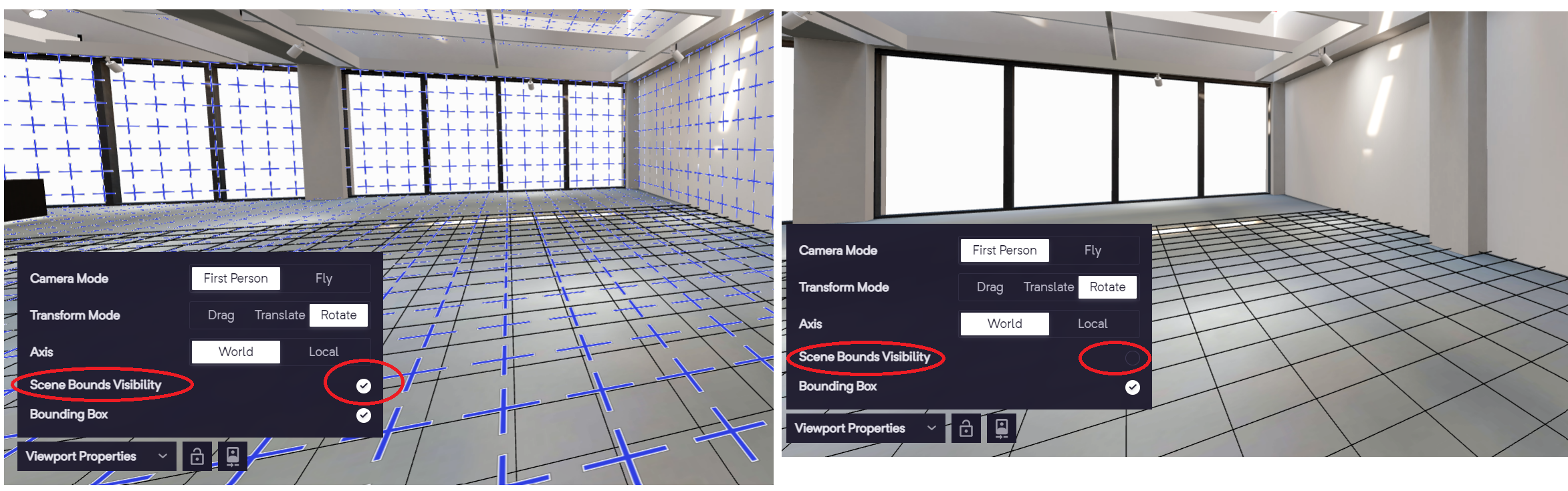
Scene Bound visibility
Bounding Box
Section titled “Bounding Box”This is 3D cuboid frame that encloses an element within the experience. It is used to represent the dimensions and position of an item.
Shown below are examples with and without bounding box visibility.
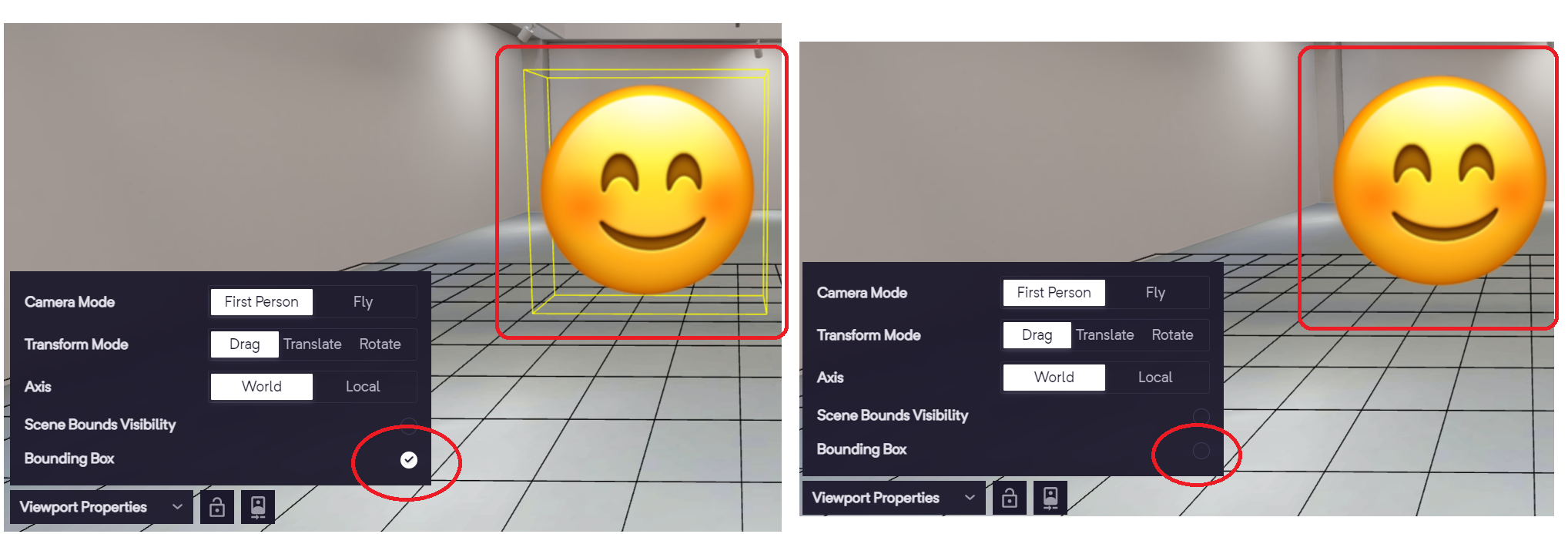
Bounding box