

Image
Can I add images to my experience?
Section titled “Can I add images to my experience?”Step 1: Add an Image
Section titled “Step 1: Add an Image”You can add an image by clicking on the ‘+’ icon in the top bar.
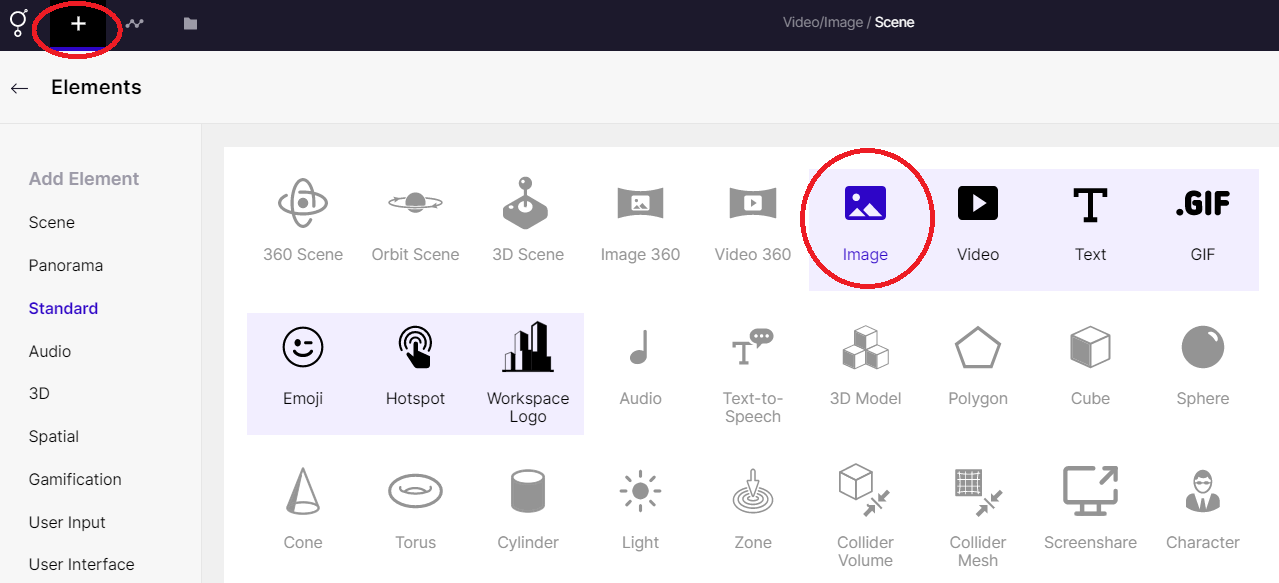
Adding an Image
Step 2: Upload / Choose file
Section titled “Step 2: Upload / Choose file”You can choose from the inventory of image or upload one from your computer.
Read below to know how to select a file to upload an image/ video.
Step 3: Adjust the Image element
Section titled “Step 3: Adjust the Image element”The right panel offers various options for making adjustments. You can modify the image’s width, height, scale, and opacity.
You can also animate, control the speed and modify other adjustments too, from here.
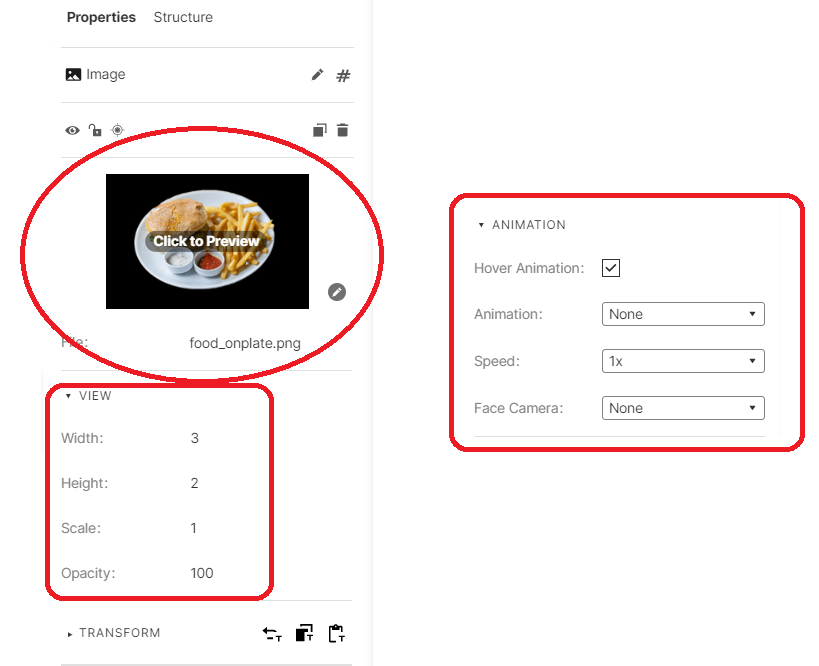
Adjusting the Image