

Live Stream Zoom on YouTube
GMetri supports adding YouTube live stream video as embeds.
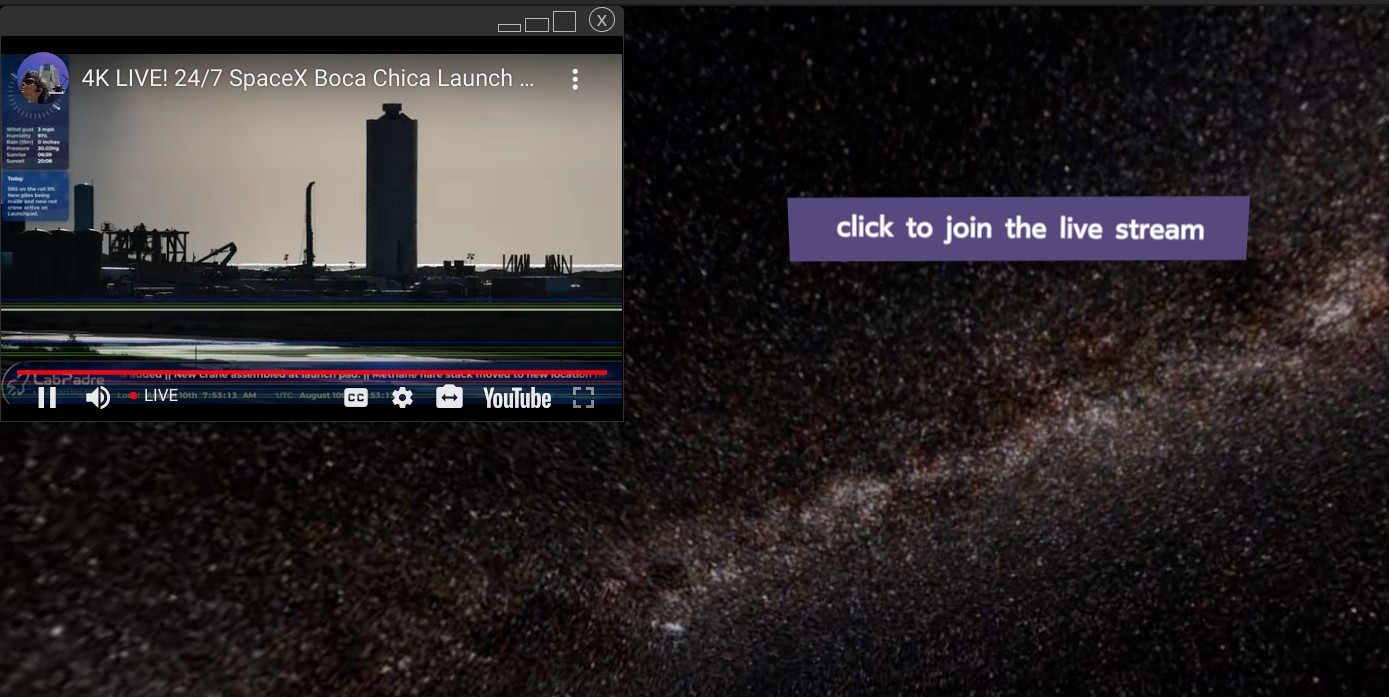
YouTube Live Stream
Section titled “YouTube Live Stream ”Live Stream must first be enabled on your YouTube account in order for you to start a Live video. For more information on this, please check YouTube help.
-
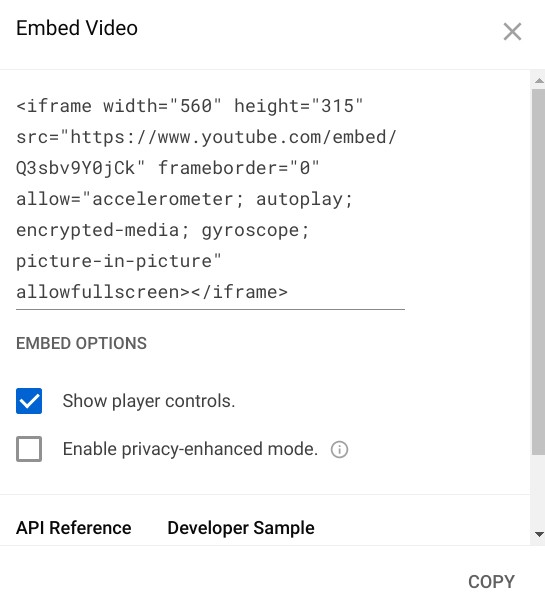
After you start your live video, obtain the embed code from the video:
- Click on “Share”
- Click on the “Embed” option
- Copy the provided HTML code
-
In the experience editor, add an EmbedHtml element. In the space provided, add the embed code copied from youtube.
a. To stream without the Live Chat feature
Change the attributes
widthandheightto:width=100% height=100%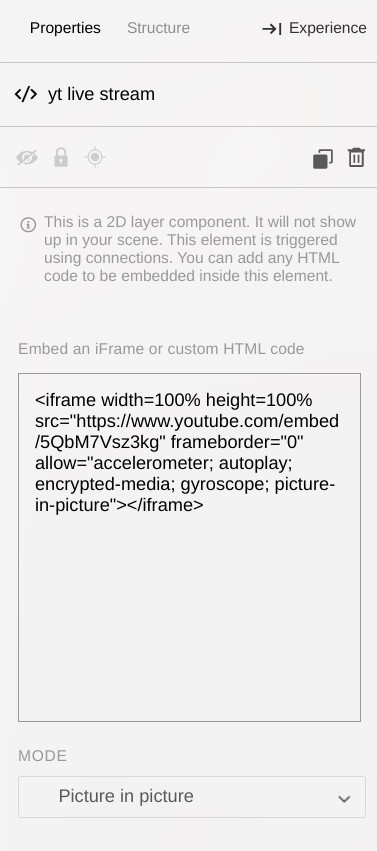
b. To embed the Live Chat feature along with your live video stream
-
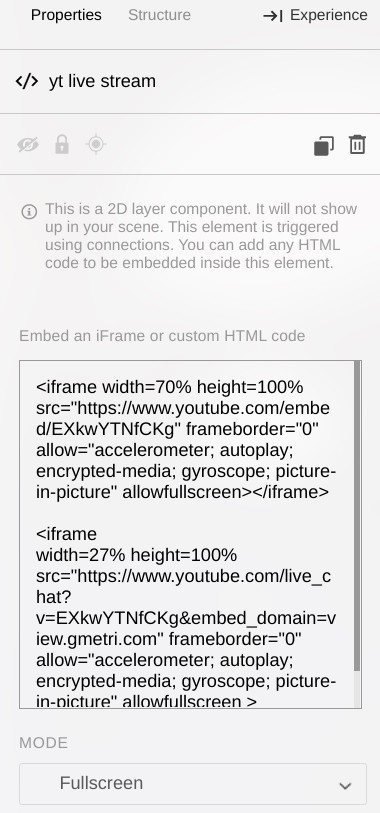
Change attributes
widthandheightto:width=70% height=100%in the pasted Embed Video code. -
Add the following below the pasted code:
<iframewidth=27% height=100%src="https://www.youtube.com/live_chat?v={video id}&embed_domain=view.gmetri.com"frameborder="0" allow="accelerometer; autoplay; encrypted-media; gyroscope; picture-in-picture"allowfullscreen></iframe> -
Replace the part where
{video id}is mentioned inside thesrcattribute with the video ID of your live stream. To obtain video ID, click on “Share” and copy only the highlighted part as shown.
Your Properties should now look something like this:
-
-
Choose a display mode for the EmbedHTML element.
- Picture-in-picture mode:
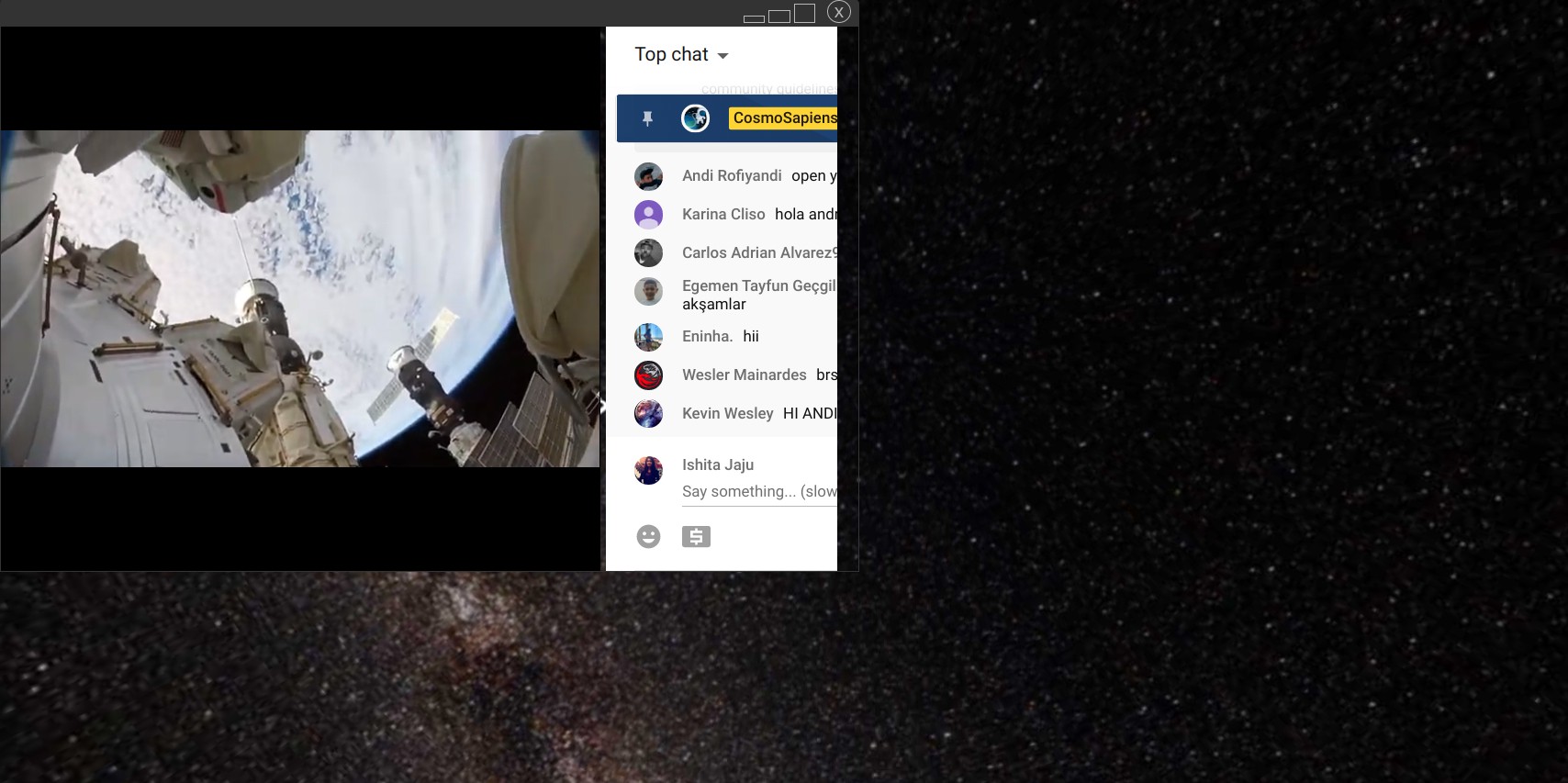
This mode opens a small window where the user can view the livestream as well as the experience at the same time.
- Pop-up mode
- Fullscreen mode
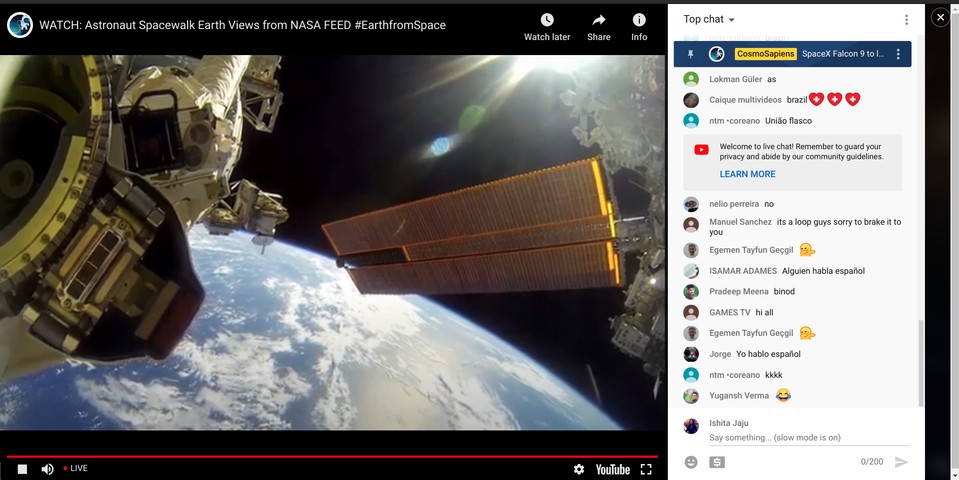
These modes open the live stream as an overlay on top the rest of the experience.
-
Also add a rule to show the EmbedHTML element setup above when clicked on any button.

Linking Zoom with YouTube
Section titled “Linking Zoom with YouTube ”A Zoom meeting or webinar can be streamed lived on youtube. This allows participants to join meetings/webinars on youtube and comment via youtube live chat. Those viewing on Youtube can only comment via Youtube, and cannot interact directly with other meeting/webinar attendees.
Enabling Youtube Live Streaming for Meetings
Section titled “Enabling Youtube Live Streaming for Meetings ”-
Sign in to the Zoom web portal.
-
Click on Account Management > Account Settings.
-
Toggle the
Allow live streaming the meetingsunderIn Meeting (Advanced), and enableYoutube.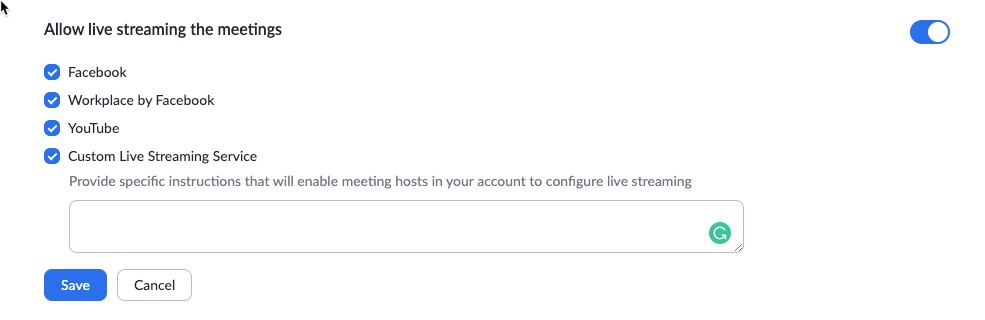
For more information about Account level activation, please see here.
Enabling Youtube Live Streaming for Webinars
Section titled “Enabling Youtube Live Streaming for Webinars ”-
As an Owner or Account Admin, sign in to the Zoom web portal.
-
Go to Account Management > Webinar Settings.
-
Click Edit to the right of
In Webinar Settings. -
Enable
Allow hosts to live stream to webinars, and then enableYoutube.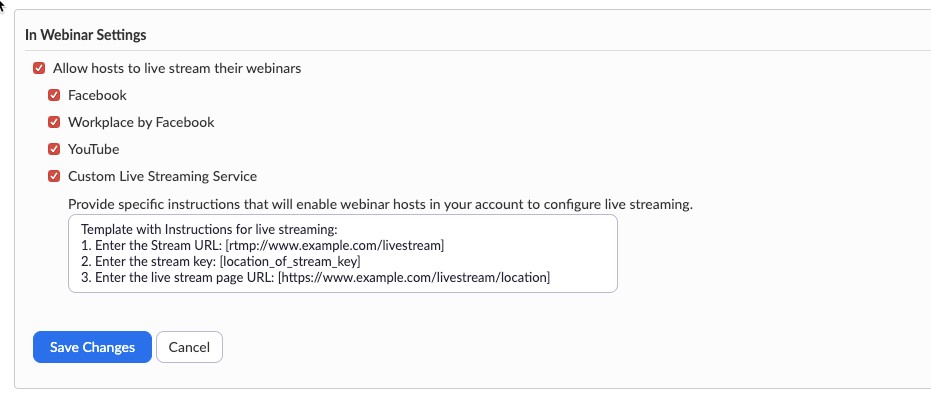
-
Click on
Save Changes.
Initiating a Live Stream to Youtube
Section titled “Initiating a Live Stream to Youtube ”-
Start the Webinar or Meeting.
-
Click on
Morein the Meeting/Webinar Controls. -
Click
Live on YouTube.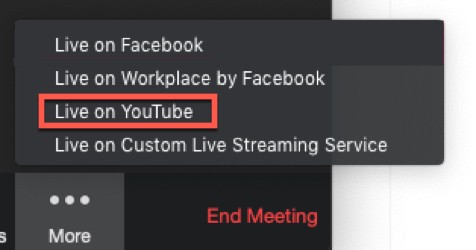
-
Login to Youtube by following the steps shown.
-
After successful authentication, the following page should open up:
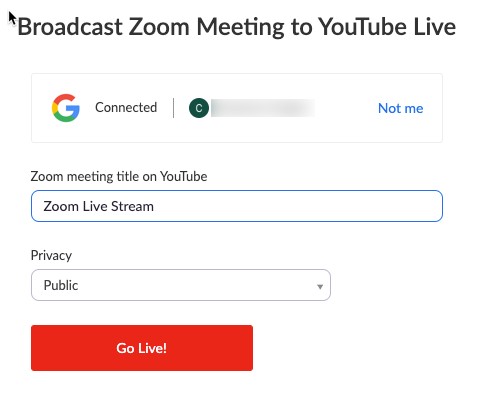
Specify the settings you need:
- Title to display on Youtube
- Privacy
-
Click on the
Go Live!button. -
You will see a progress bar, letting you know that the session is being prepared for streaming.
-
Wait for the notification from the Zoom client that your Meeting/Webinar is Live on YouTube, then begin your Meeting/Webinar.
-
Streaming stops when you end the webinar or meeting, or click
MorethenStop Live Streamin the meeting controls.
Embed it in your experience
Section titled “Embed it in your experience ”To embed youtube live streams, follow the steps in this section.