

Audio
Can I add audio to my experience?
Section titled “Can I add audio to my experience?”Step 1: Add an Audio Element
Section titled “Step 1: Add an Audio Element”You can add an Audio file by clicking on the ‘+’ icon in the top bar and selecting ‘Audio’.
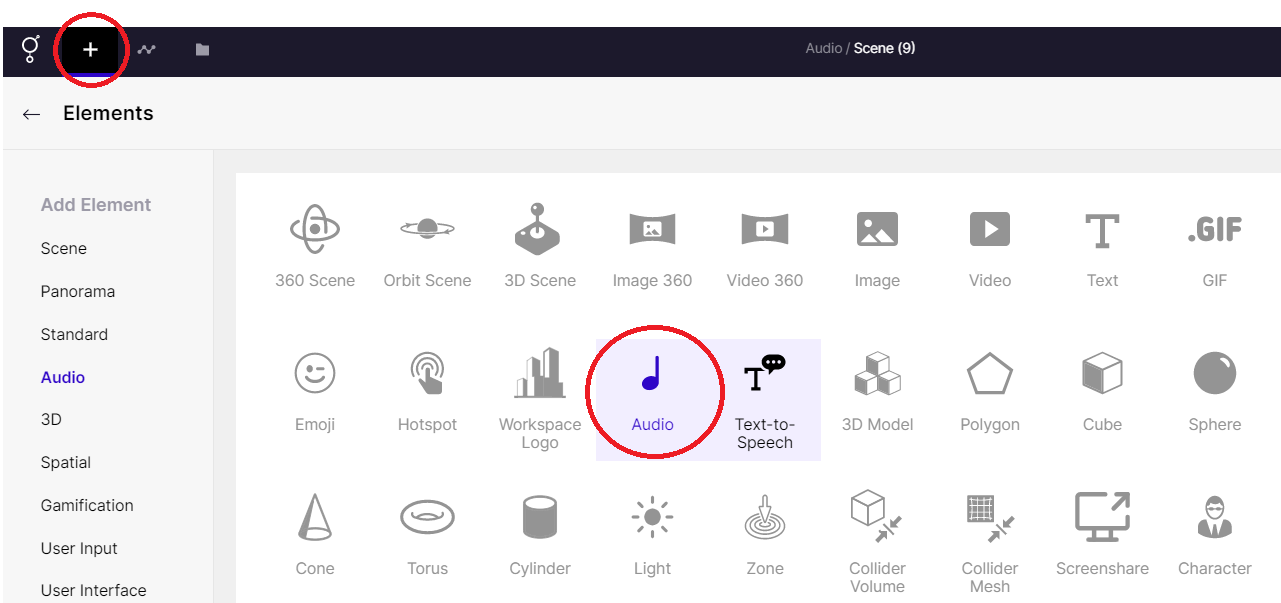
Adding Audio element
Step 2: Upload / Choose file
Section titled “Step 2: Upload / Choose file”On the right panel, go to properties and select ‘Click to Upload’.
You can choose the audio file from your computer or select from the available templates.
Read below to know how to select a file to upload an audio element.
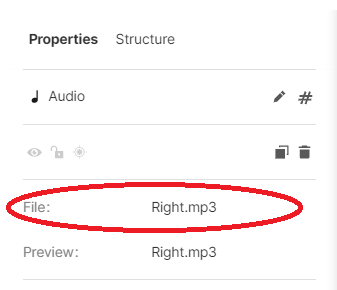
Selecting an audio file
Step 3: Adjust the Audio element
Section titled “Step 3: Adjust the Audio element”From the Properties Panel, you can preview the audio element, control the volume, silence it, or set it to loop.
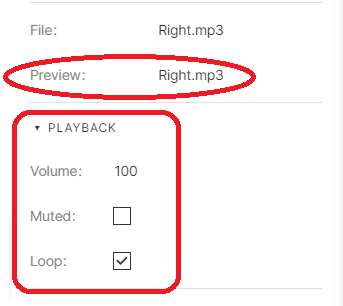
Adjusting the audio element
Example Experience
Section titled “Example Experience”The rules applied in the above experience are shown below
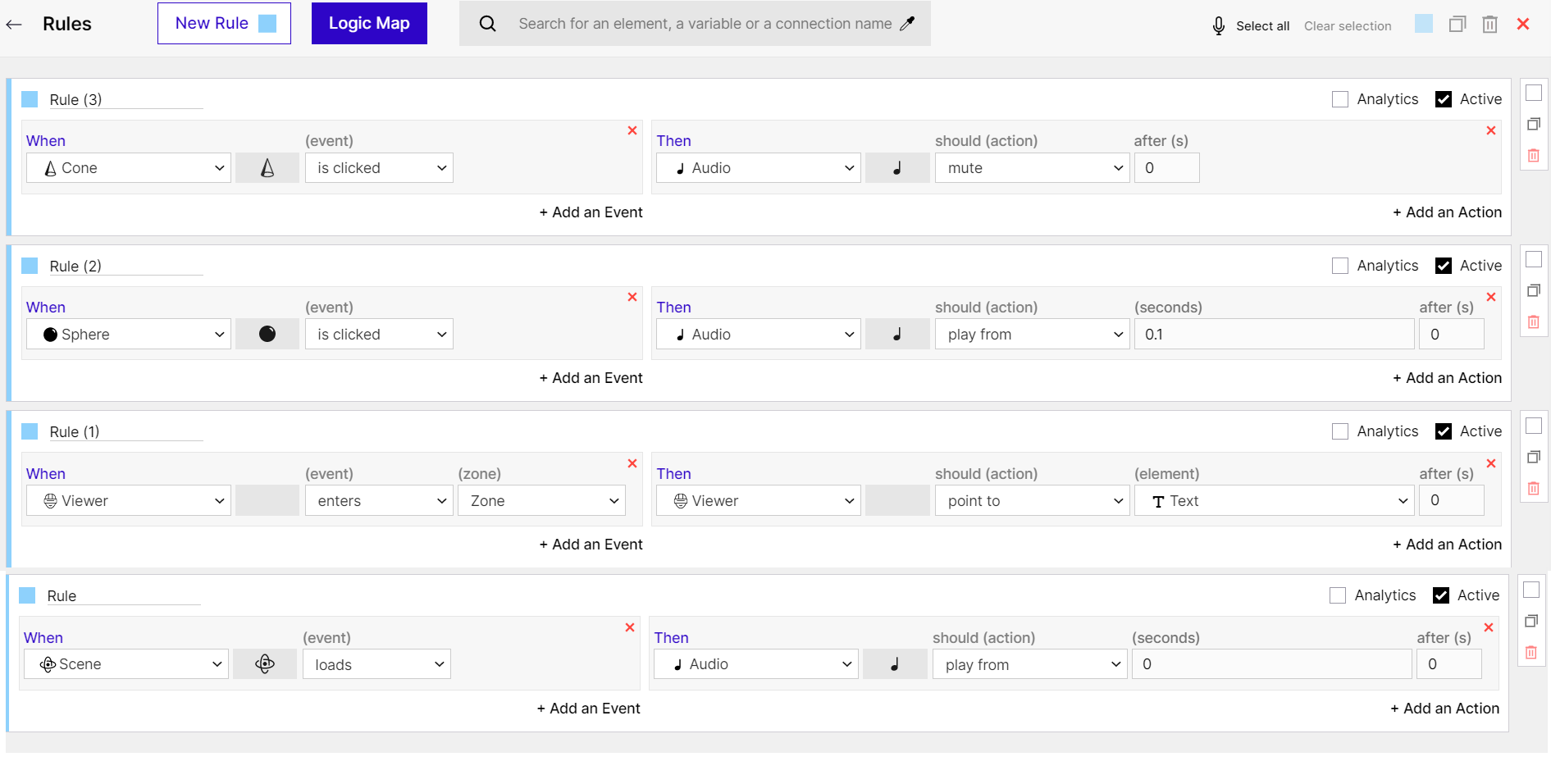
Rules applied in the example experience