

GIF
How do I add a GIF in my experience?
Section titled “How do I add a GIF in my experience?”Step 1: Add a GIF element
Section titled “Step 1: Add a GIF element”You can add a GIF by clicking on the ‘+’ icon in the top bar and selecting ‘GIF’.
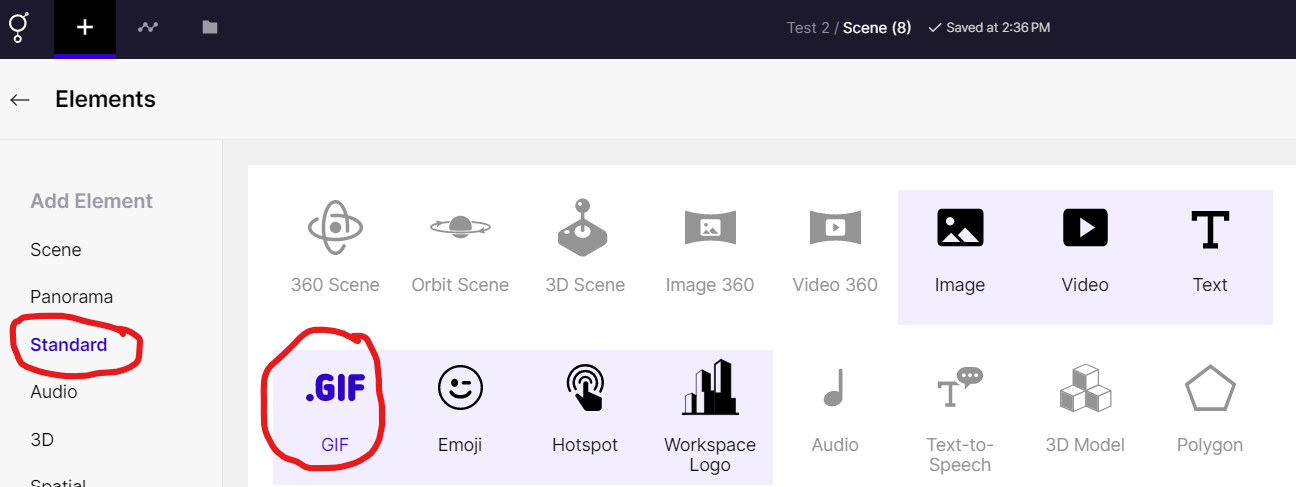
Add GIF to your experience
Step 2: Upload / Choose file
Section titled “Step 2: Upload / Choose file”Go to properties and select ‘Upload/Choose File’
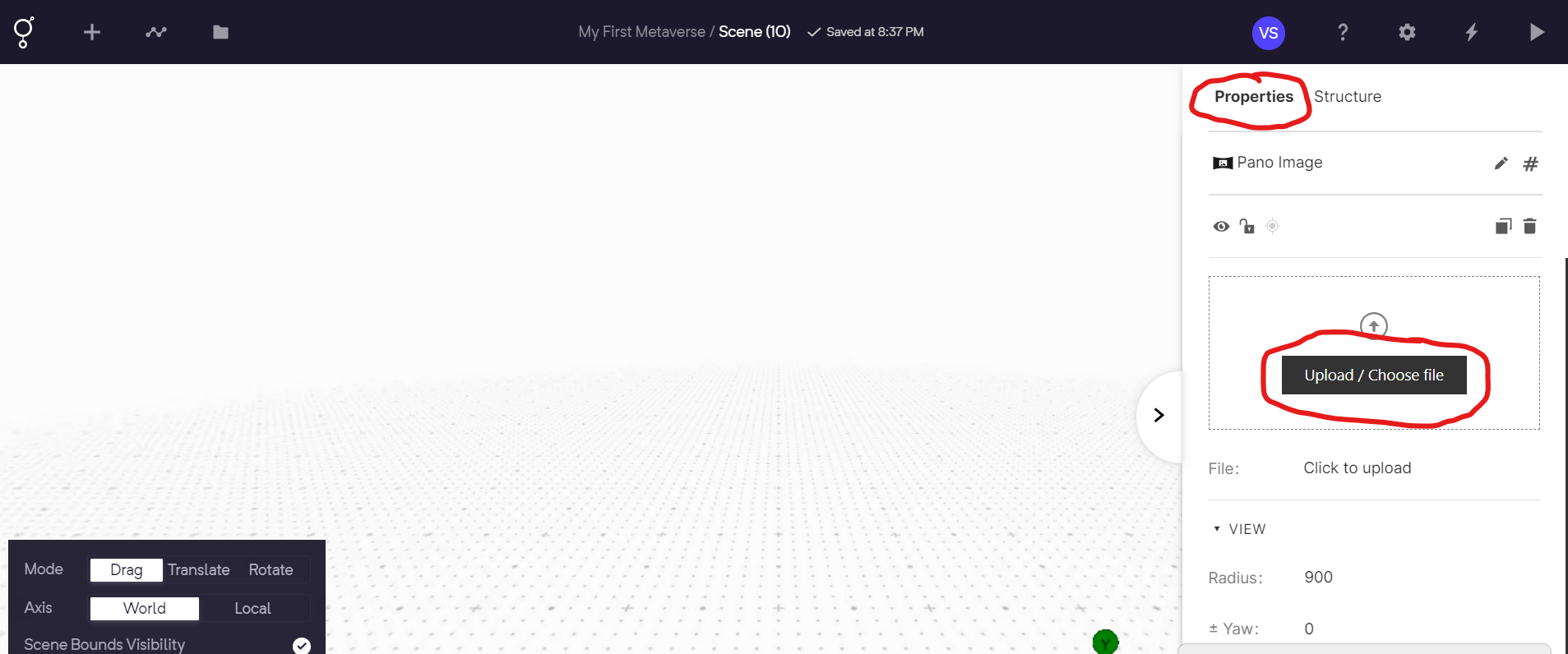
Upload/Choose File
Step 3: Adjust the GIF element
Section titled “Step 3: Adjust the GIF element”In the right panel of your workspace, you can manage various adjustments of a GIF element. You can customize the width, height, scale, and opacity of the element, as well as animate and move/rotate it to fit the scene in your experience.
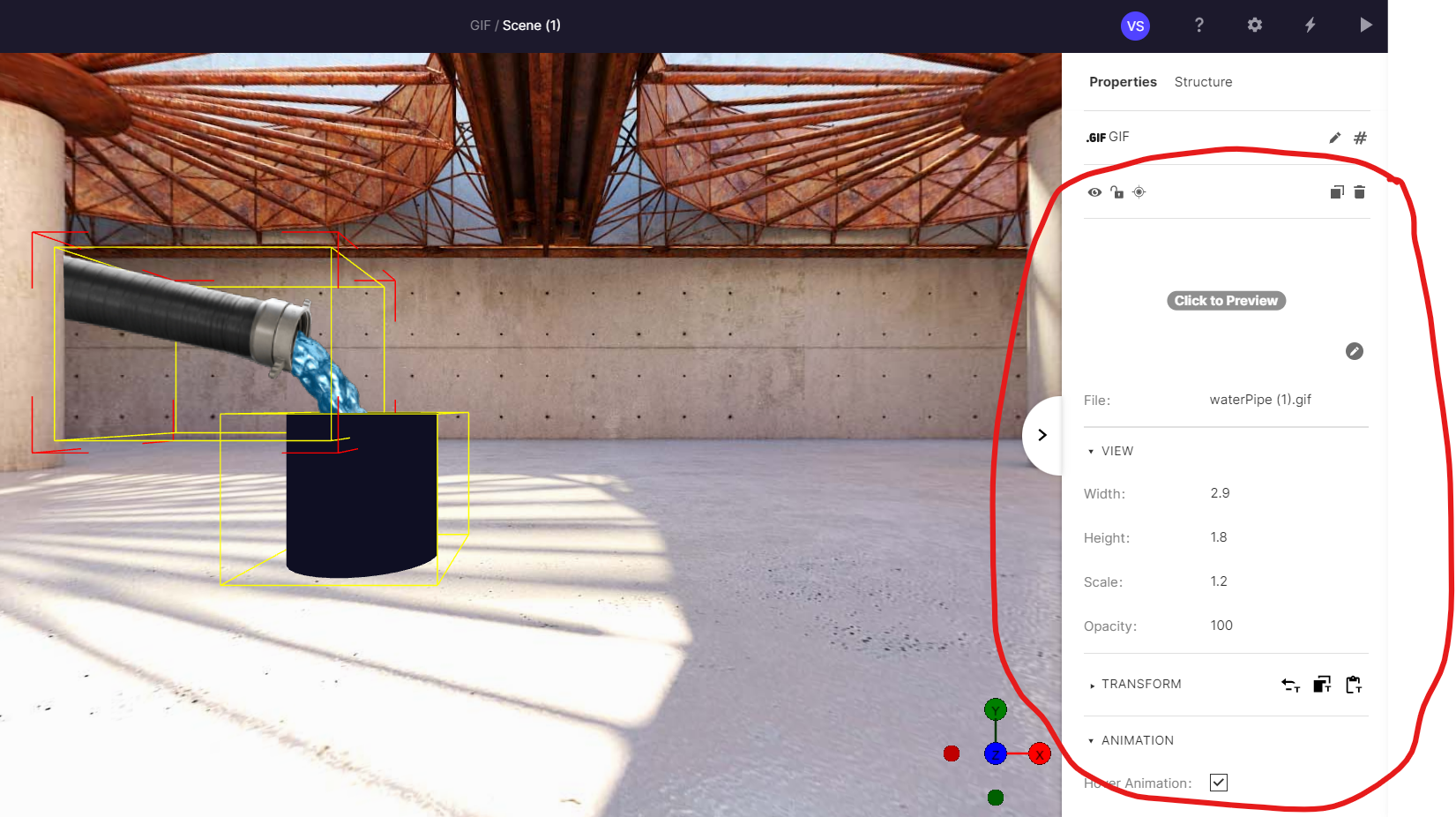
GIF adjustments