

Preferences
To access your Preferences settings, you can click on the Settings icon located on the top-bar.
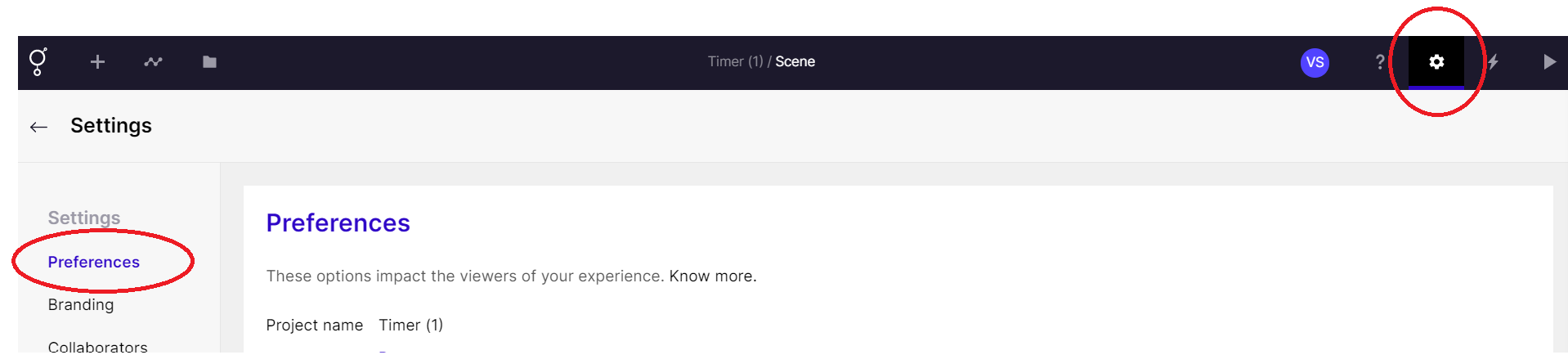
Where to find Preferences
Let’s explore each of the options on the Preferences settings page below.
Initial Scene
Section titled “Initial Scene”The “Initial Scene” refers to the scene that starts first when a viewer launches your experience. This setting is particularly useful when you have multiple scenes in your experience and want to make sure that a specific scene is shown first.
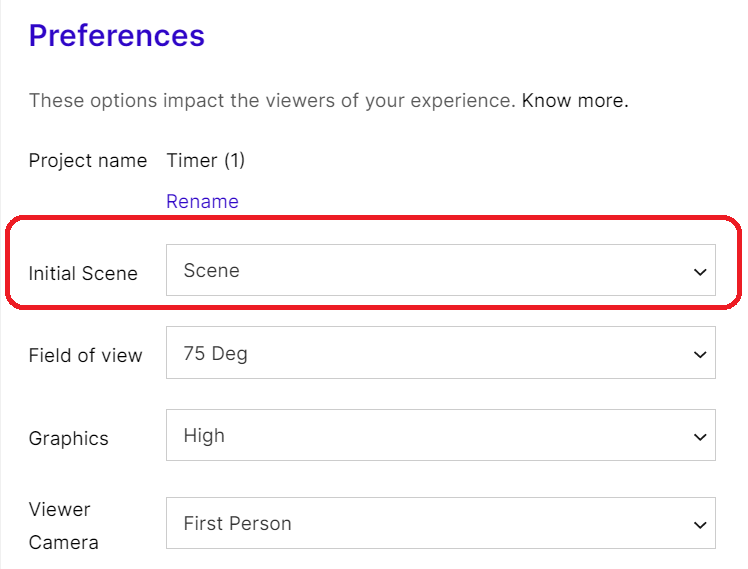
Initial Scene
Field of View
Section titled “Field of View”This setting controls the field of view, which refers to the extent of the observable environment that is seen at any given moment in your experience.
The default value is typically set to 75 degrees and in most cases, it is not necessary to change it.
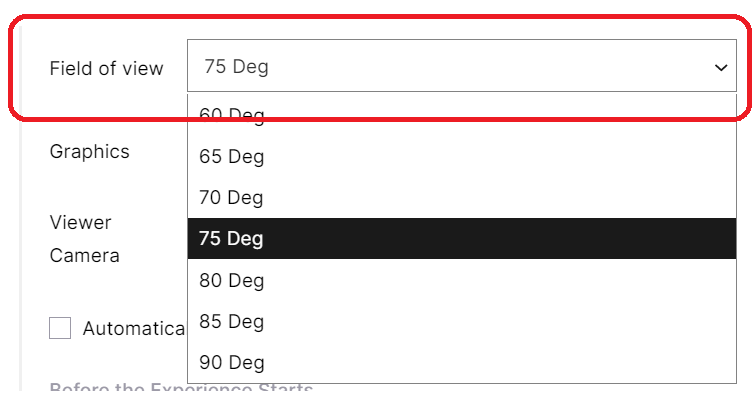
Field of View
Graphics
Section titled “Graphics”If you are targeting low-end devices, you can set the Graphics to “Adaptive”.
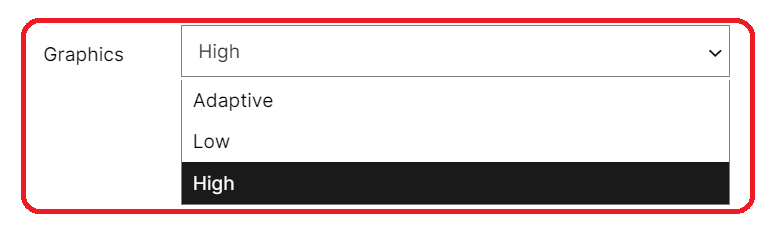
Graphics
Viewer Camera
Section titled “Viewer Camera”Learn more about the Viewer Camera Preference here: #viewer-camera-preference
Automatically Track Rules
Section titled “Automatically Track Rules”If this is checked, the rules applied to the experience will be tracked automatically through active analytics tracking.
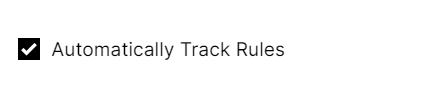
Automatically Track Rules

Active analytics in Rules
Before the Experience starts
Section titled “Before the Experience starts”Show Navigation Instructions
Section titled “Show Navigation Instructions”If this is checked, the experience will show navigation instructions for 360 scenes, to the viewer.
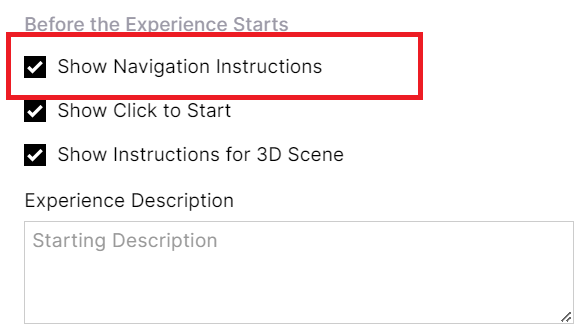
Show Navigation Instructions
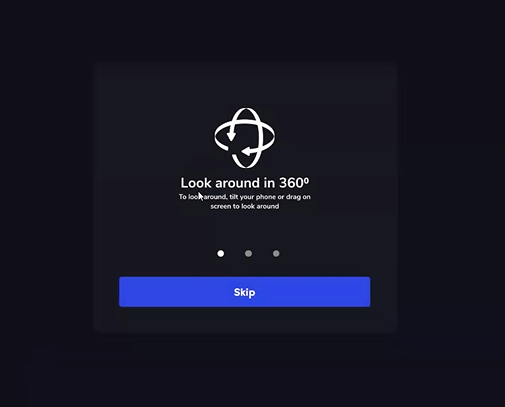
Navigation Instructions
Show Click to Start
Section titled “Show Click to Start”If this is checked, “Start” button will appear for the viewer to enter the experience.
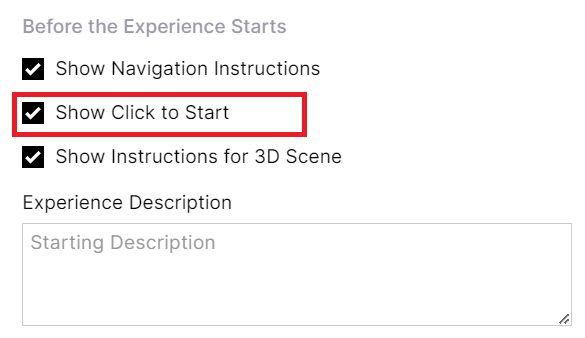
Show Click to Start
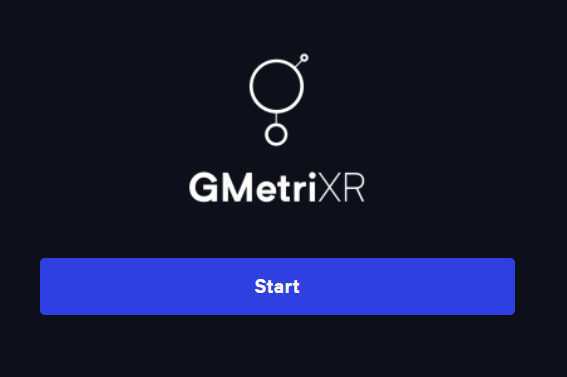
Click to Start button
Show Instructions for 3D scene
Section titled “Show Instructions for 3D scene”If this is checked, the experience will show navigation instructions for 3D scenes, to the viewer.
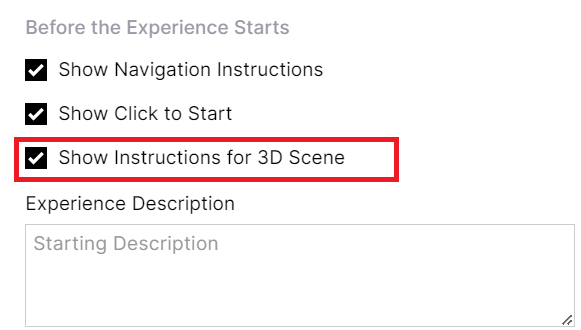
Show Instructions for 3D scene
Experience Description
Section titled “Experience Description”You can add a description that will appear below the “Click to Start” button for the viewer.
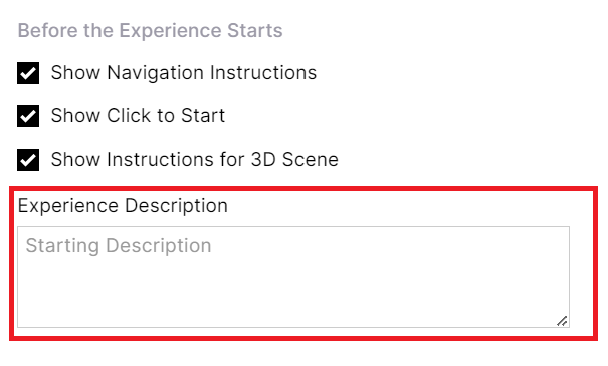
Experience Description
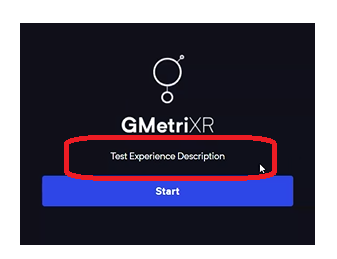
Experience Description before click to start
Control Panel
Section titled “Control Panel”Allow VR Mode
Section titled “Allow VR Mode”This controls the visibility of the VR mode button, if the hardware supports it.
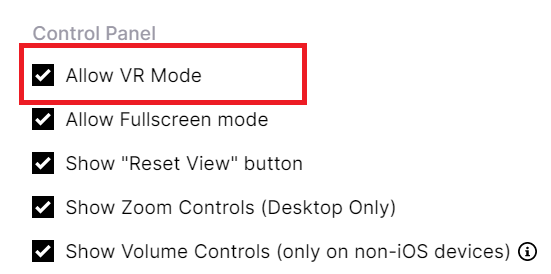
Allow VR Mode
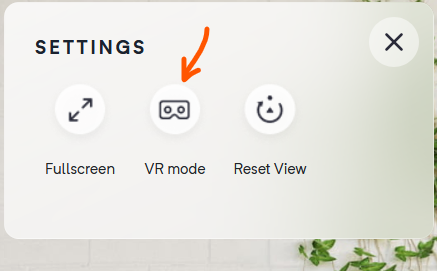
VR Mode
Allow Fullscreen mode
Section titled “Allow Fullscreen mode”This controls the Fullscreen button.
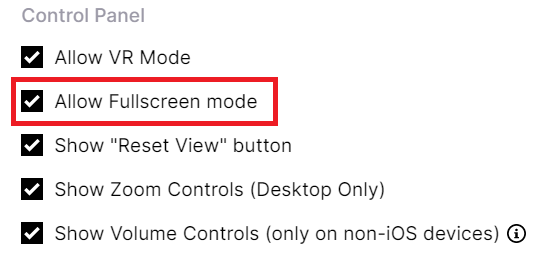
Allow fullscreen button
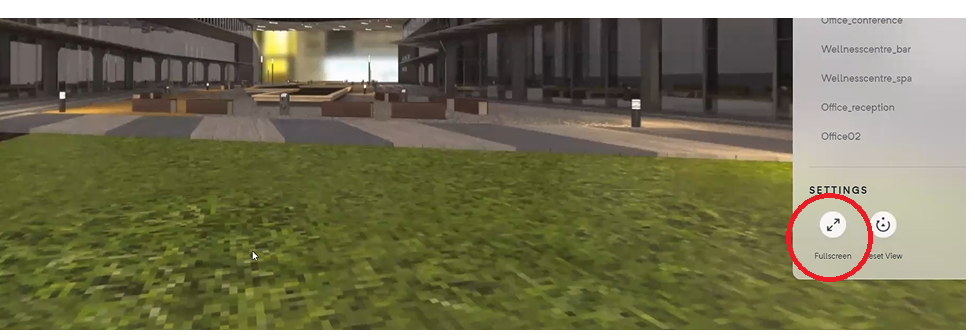
Fullscreen button
Show “Reset View” button
Section titled “Show “Reset View” button”When the user clicks this button, the scene will realign to the initial view.
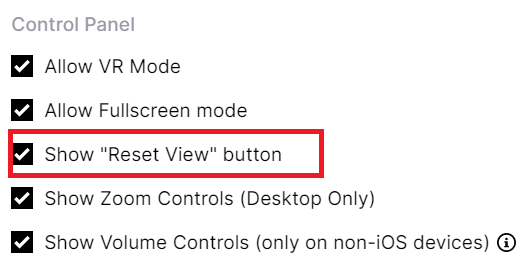
Show "Reset View" Button
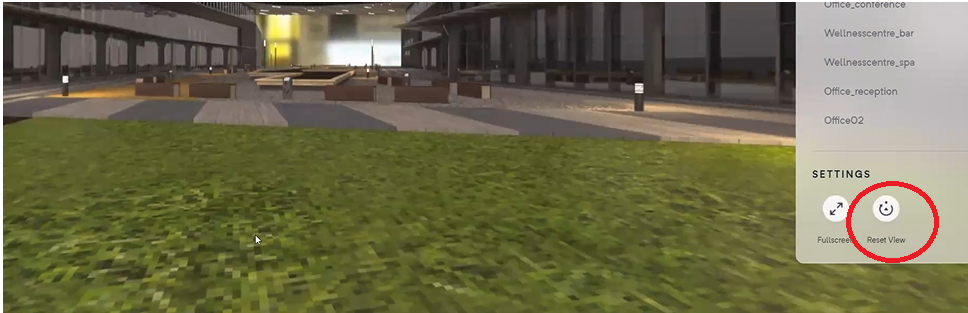
Show "Reset View" button
Show Zoom controls
Section titled “Show Zoom controls”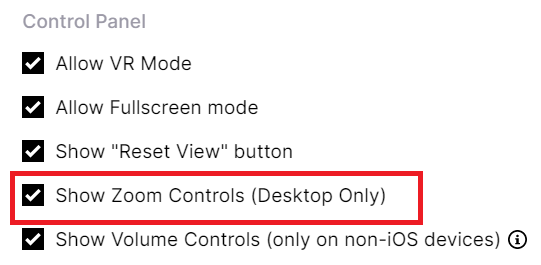
Show Zoom Controls (Desktop Only)
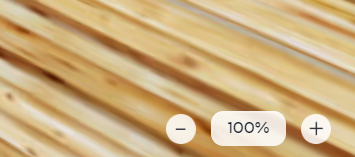
Zoom Controls
Show Volume Controls
Section titled “Show Volume Controls”Enabling this option will control the visibility of the volume button.
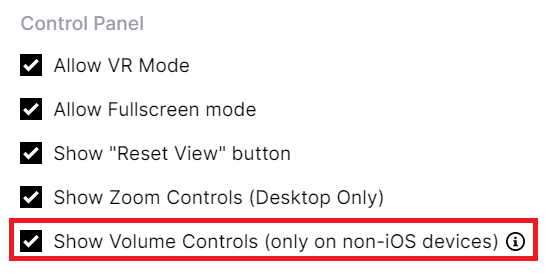
Show Volume Controls
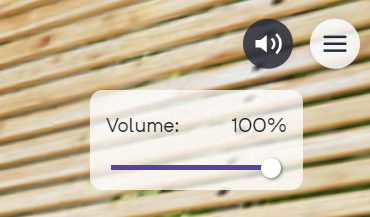
Volume Controls
Advanced
Section titled “Advanced”Enable Gyroscope
Section titled “Enable Gyroscope”You can enable gyroscope view according to the viewer’s position and perspective in real-time based on the movement of their device, creating an immersive and interactive experience.
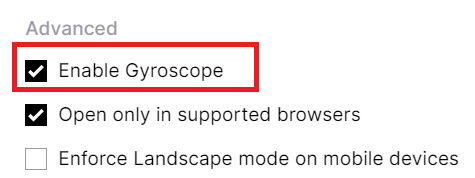
Gyroscope
Open only in supported browsers
Section titled “Open only in supported browsers”Checking this option, controls whether a browser compatibility check will be performed.
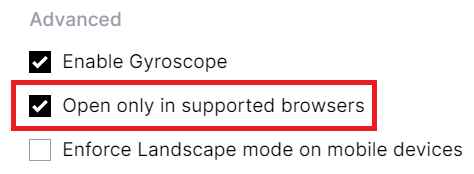
Open Only in supported browsers
When this option is enabled, and you use a browser that’s not supported, you get the following blocker screen.
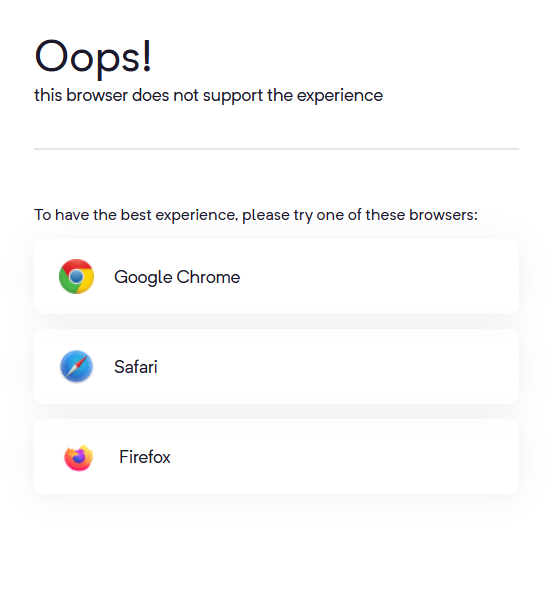
Browswer Blocker Screen
Enforce Landscape Mode on mobile devices
Section titled “Enforce Landscape Mode on mobile devices”Checking this box will allow your experience to be viewed in landscape mode if it is designed to be viewed in that orientation.
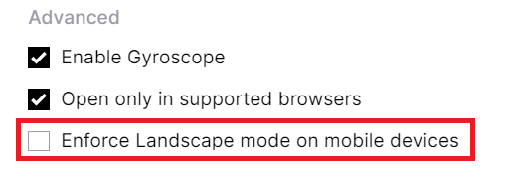
Enforce Landscape mode on mobile devices
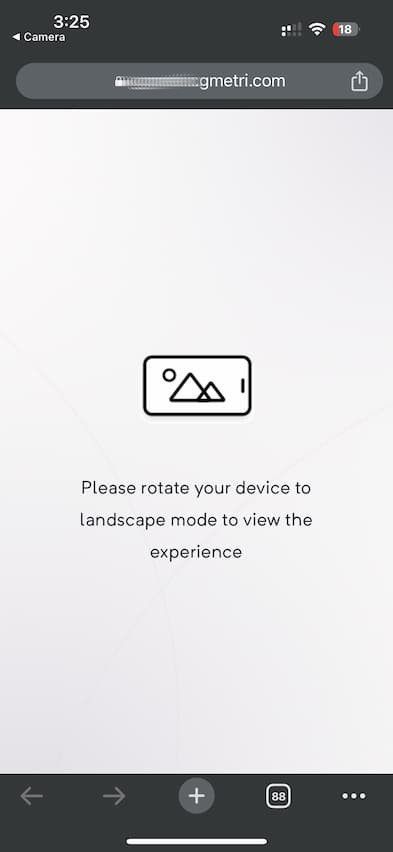
Enforce Landscape