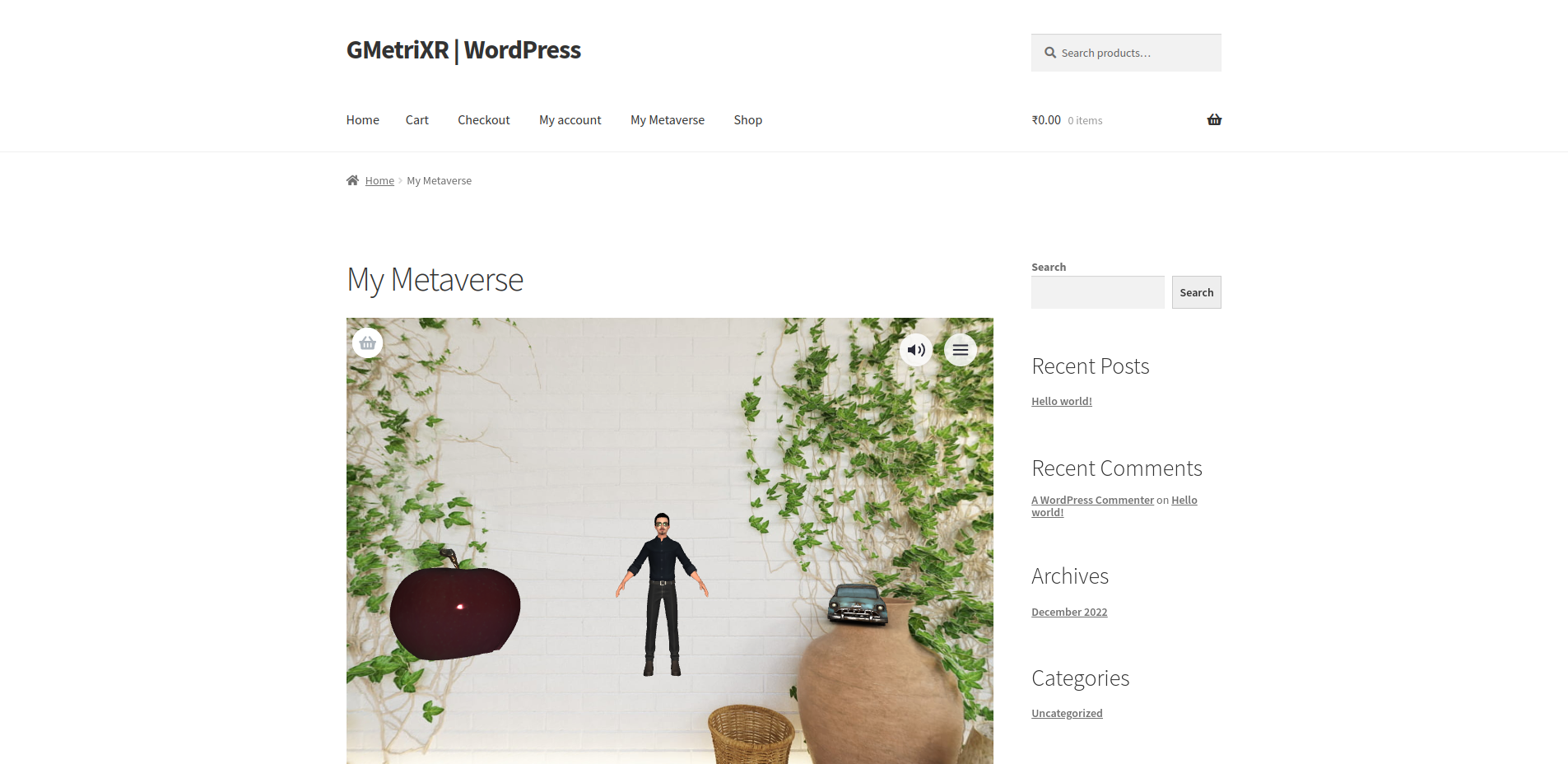
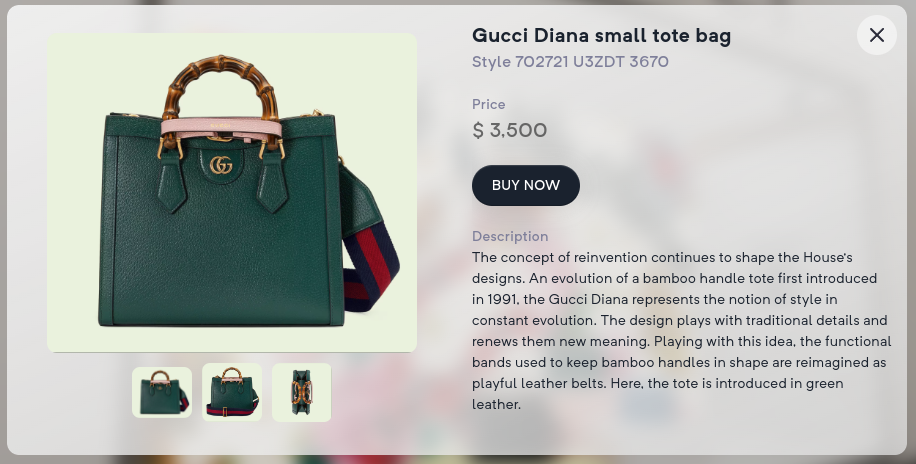
WooCommerce Integration
Looking to host your WooCommerce store in the metaverse? Your search ends here!
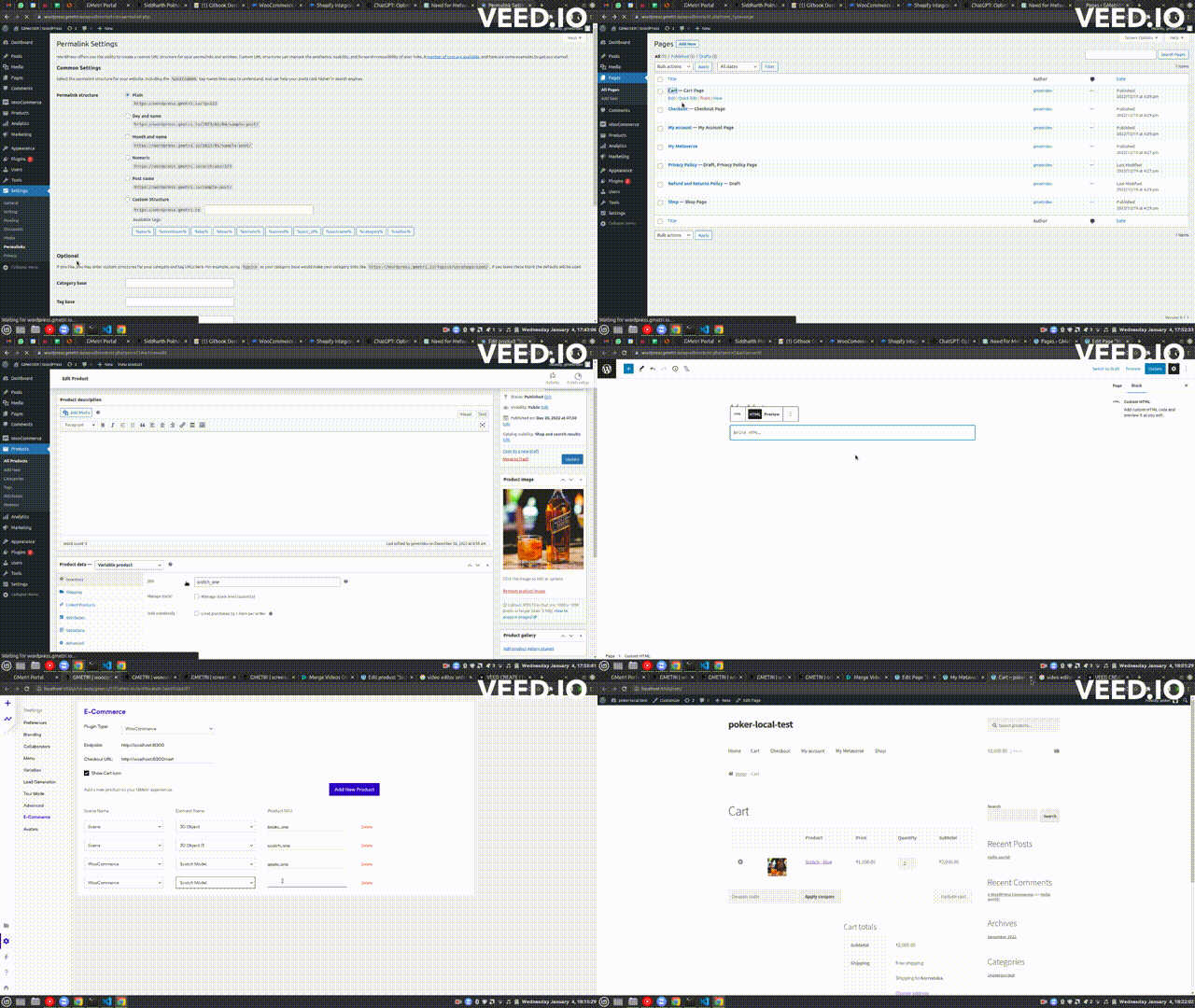
Quick Steps to integrate WooCommerce Store x GMetri Experience
Section titled “Quick Steps to integrate WooCommerce Store x GMetri Experience”- Enable Storefront API access
- Getting Product SKUs
- Get GMetri Embed Code and Add to WooCommerce Page
- Integrate WooCommerce Products with GMetri
- Test your integration and have fun creating WooCommerce stores in the metaverse.
Enable Storefront API access
Section titled “Enable Storefront API access”There are a few steps that are required to enable WooCommerce Storefront API access on your wordpress account.
- Login to your wordpress admin dashboard.
- From your wordpress admin, click Settings > Permalinks
- Make sure the permalink structure is not plain. This integration does not work with plain permalink structure. To read more about permalinks, visit this page.
- Click on Save Changes once updated.
- Get Domain name and save it for later.
- Get Cart URL and save it for later.
Domain name
Section titled “Domain name ”WooCommerce creates a unique domain name for each of the stores created on their platform. The domain name is required in conjunction with the API credentials to enable a successful integration.
- From your wordpress admin, click Settings > General
- The site address URL is the domain name of your store. Note it down for later.
Cart URL
Section titled “Cart URL”Get the checkout URL for your wordpress store
-
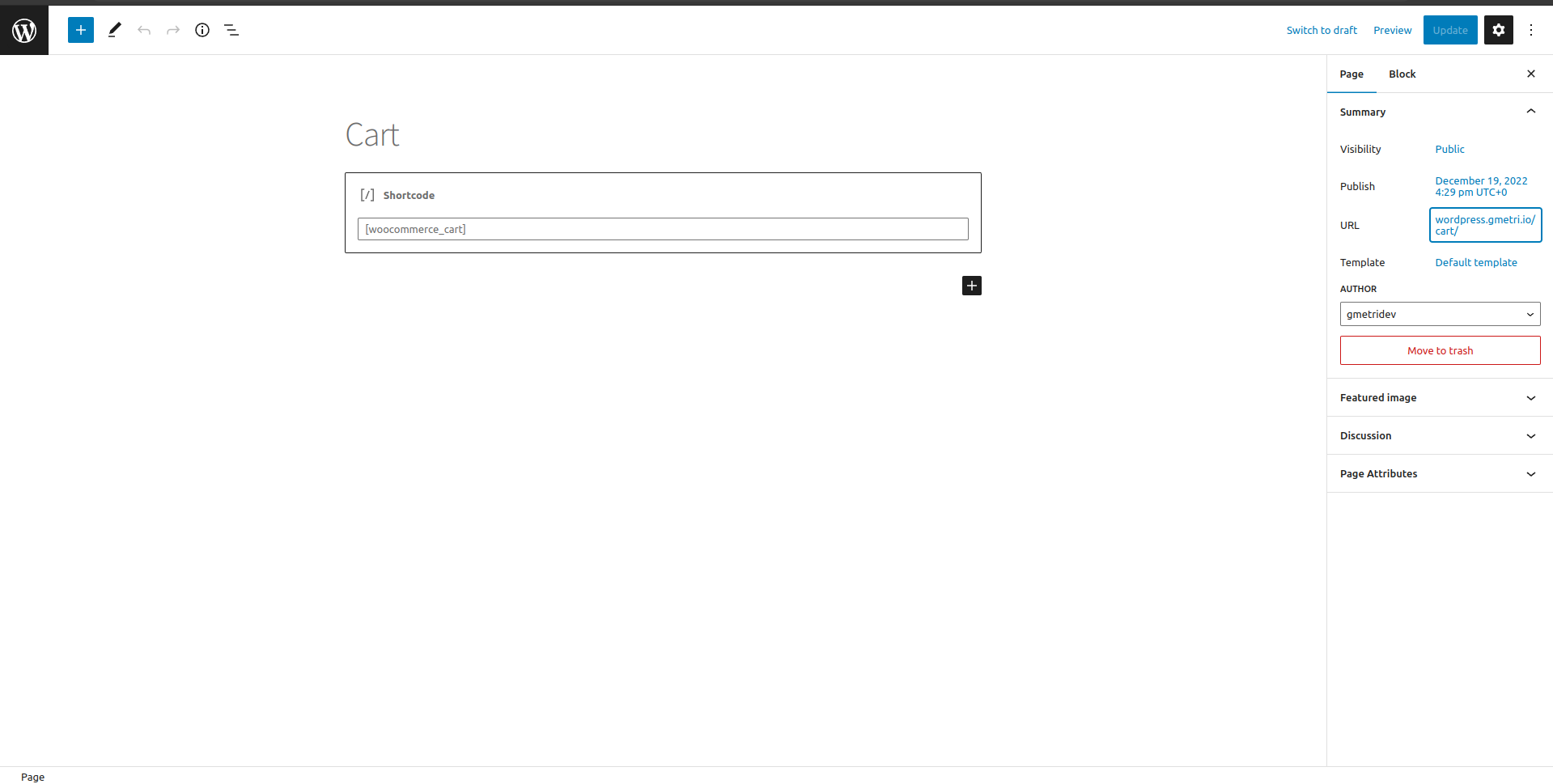
From your wordpress admin, click Pages > Cart page
-
Click on Edit.
-
Copy the page URL from the settings tab on the right side of the page
Getting a Product SKU
Section titled “Getting a Product SKU”To get a product’s SKU
-
From your wordpress admin, click Products > Select a product
-
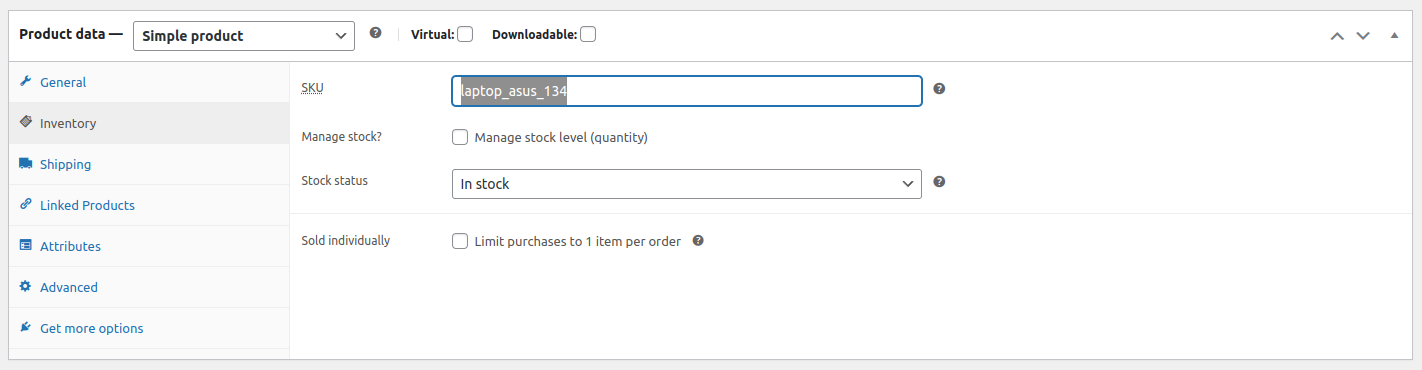
Click on Inventory and copy the SKU. If there is no SKU, add one and note the SKU for later.
-
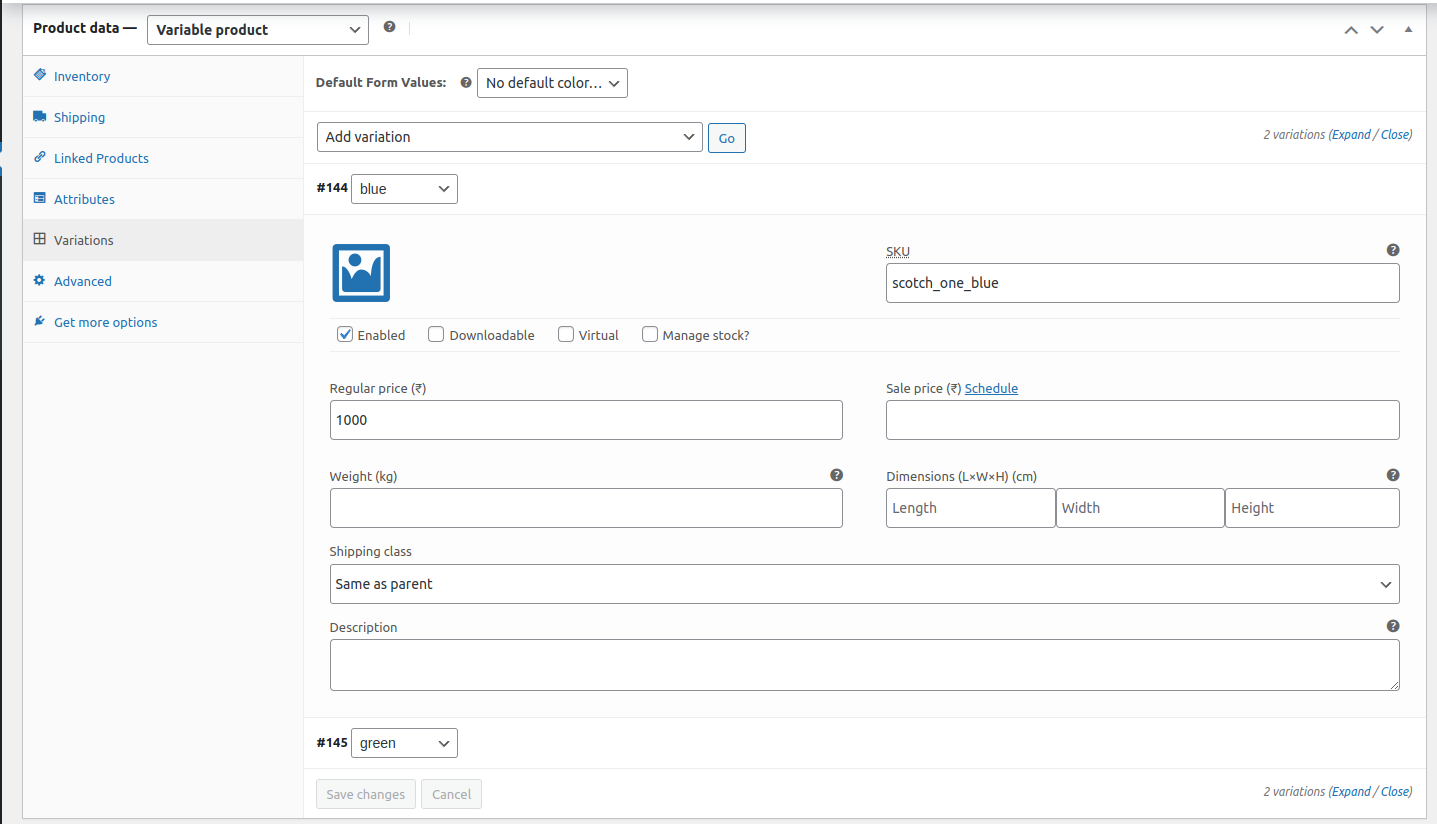
If the product has variations, make sure every variation has an SKU added.
-
Only the SKU in the inventory section (Parent SKU) is required for products with variations.
Get WooCommerce Embed code
Section titled “Get WooCommerce Embed code”-
From your GMetri homepage, open the experience editor.
-
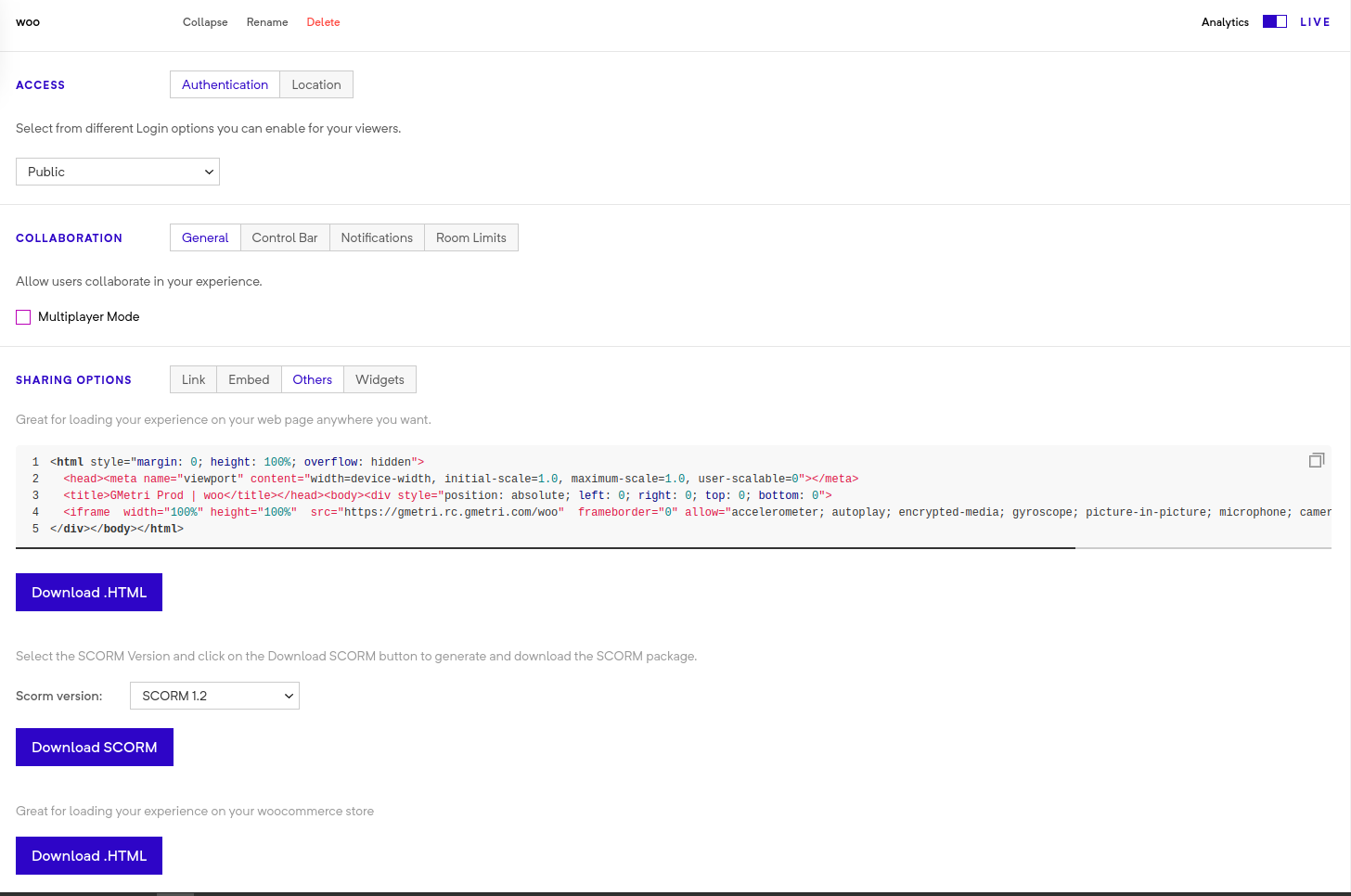
From within the editor, click Publish > Others in Sharing options
-
At the bottom, download the HTML file to be added to your wordpress store.
Add GMetri Embed Code to Wordpress page
Section titled “Add GMetri Embed Code to Wordpress page”-
From wordpress admin, open Pages section
-
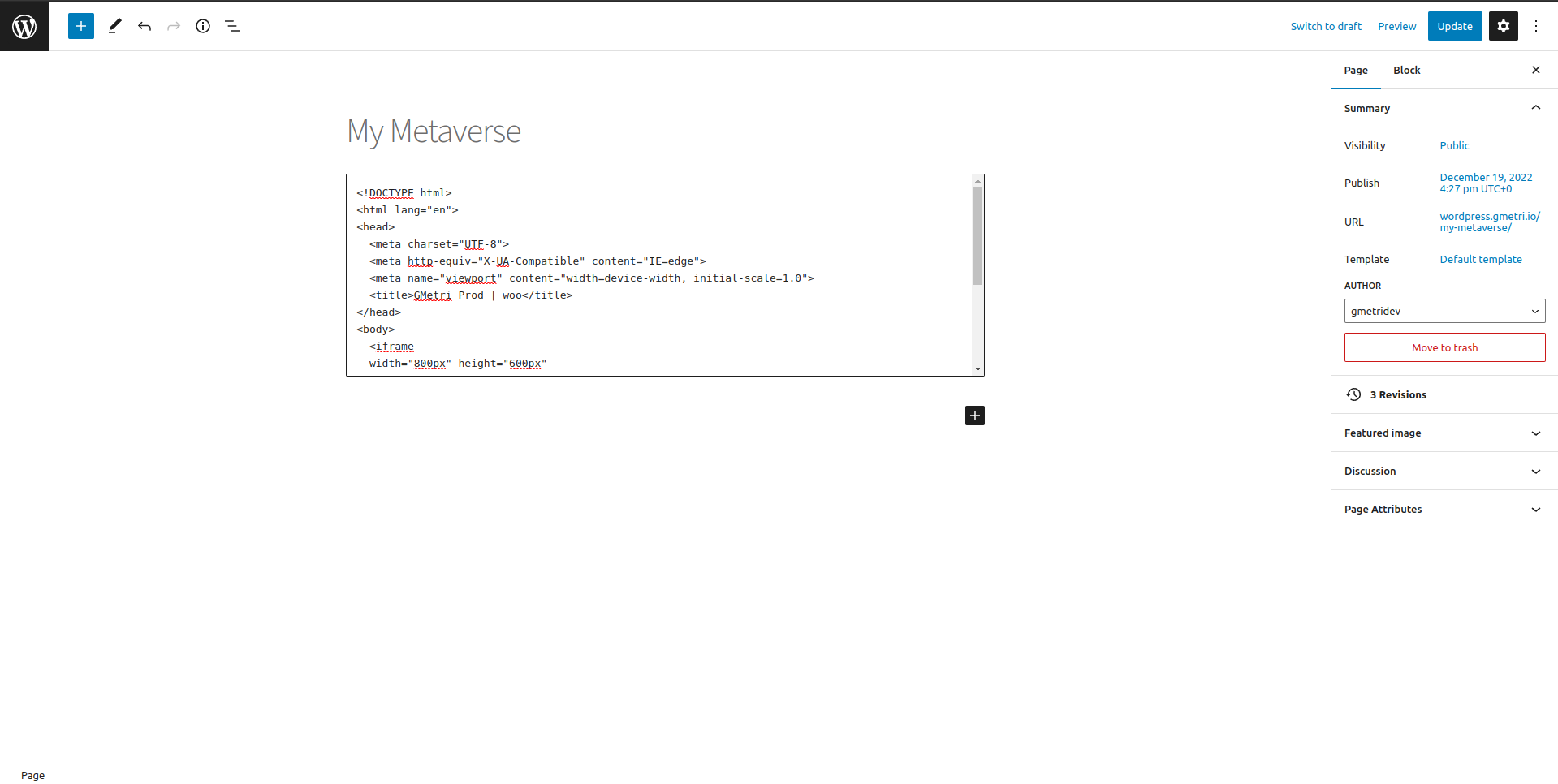
Add or edit a page wherever you want to add your GMetri Experience
-
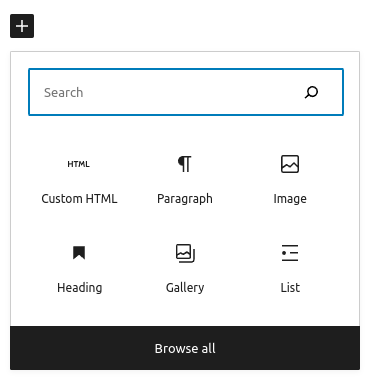
Add a custom HTML element
-
Paste the HTML embed code there and publish
Integration with GMetri
Section titled “Integration with GMetri ”If you are the admin or a collaborator, then you can configure WooCommerce integration with GMetri.
-
From your GMetri homepage, open the experience editor.
-
From within the editor, click Settings > E-Commerce > Select
WooCommercefrom the dropdown -
Enter the Endpoint noted during wordpress domain name configuration
-
Enter the Checkout URL noted during wordpress cart URL configuration
-
Check
Show Cart Iconto enable showing a cart counter and checkout link to the wordpress store from within a GMetri experience.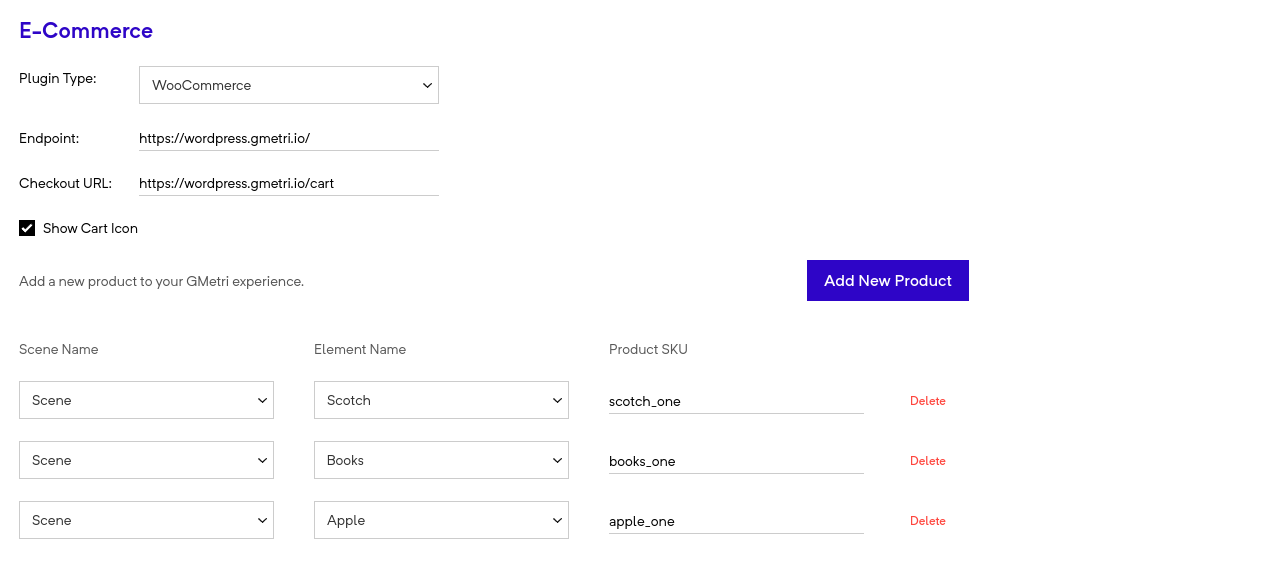
-
Above setup will internally create a set of rules to open and pull information for the relevant products from shopify storefront whenever an element is clicked. The resulting rules would read out like so: “When Books-Image is clicked, then show product with SKU”
Testing the integration
Section titled “Testing the integration ”- From your GMetri editor, close the Settings page.
- Click on
Playicon on the top right of the page and open a preview link - Click on an element which was selected in the Ecommerce section.
- This should open up the product page with information from the woocommerce store, including pricing details, pictures and variants.
- Try adding the product to cart, increase and decrease the quantity of purchase.
- Click on
Cart Iconon the top left of the page to goto wordpress store and start the payment process. - To run this experience, you need to add an embed code in your wordpress website
- To get embed code, follow Get WooCommerce Embed Code section.
- Once you have the embed code, follow Add GMetri Embed Code to Wordpress page section to add your GMetri Experience.