

Selecting a file
When adding a file to your experience, there are two options.
By selecting the available plugins from the GMetri inventory.
Section titled “By selecting the available plugins from the GMetri inventory.”Step 1: Select element in Stuture Panel
Section titled “Step 1: Select element in Stuture Panel”Upon adding an element (360Scene, Orbit Scene, 3D Scene), you will be automatically redirected to “Structure” on the right bar of your deployment.
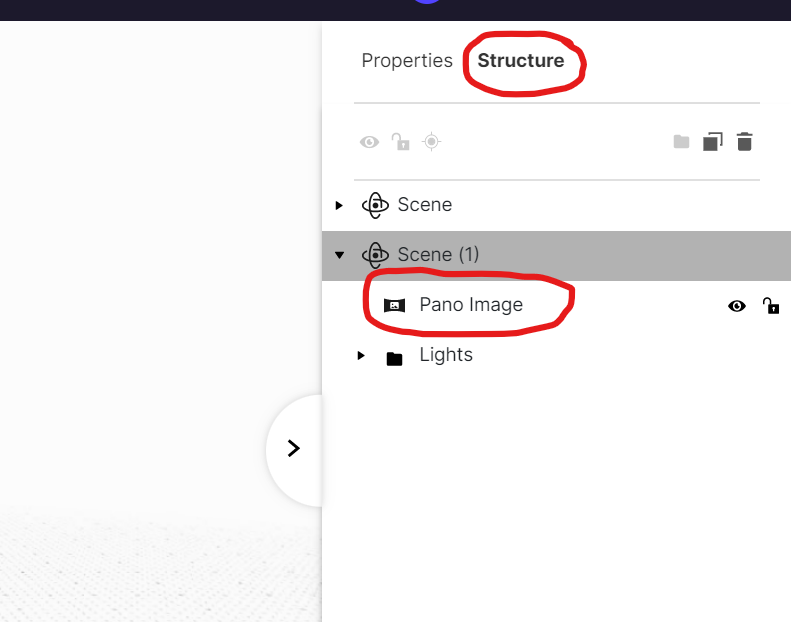
Structure in the workspace
Step 2: Open Properties Panel
Section titled “Step 2: Open Properties Panel”To select a file, navigate to Pano image > Properties > Upload / Choose file.
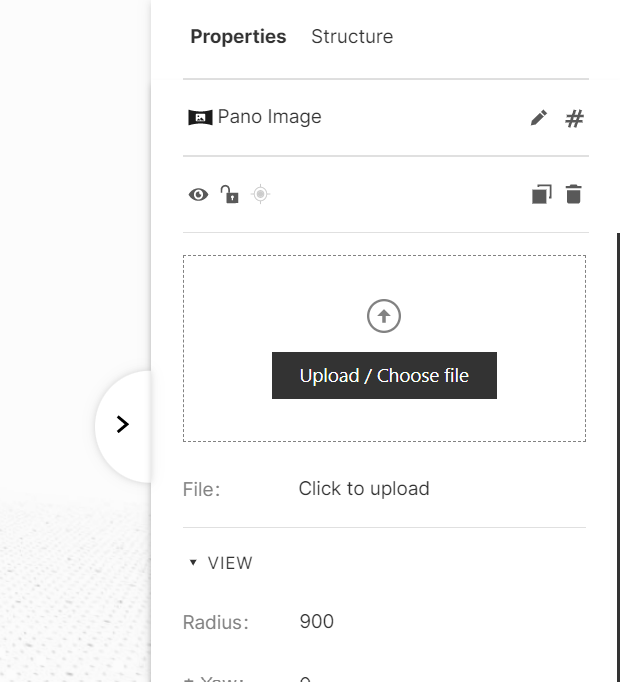
Pano Image - choose file
Step 3: Click on any of the assets from Plugins
Section titled “Step 3: Click on any of the assets from Plugins”It will then redirect you to Files Manager > Plugins > Folders > Files
Click on any of the assets from Plugins tab to Explore the options.
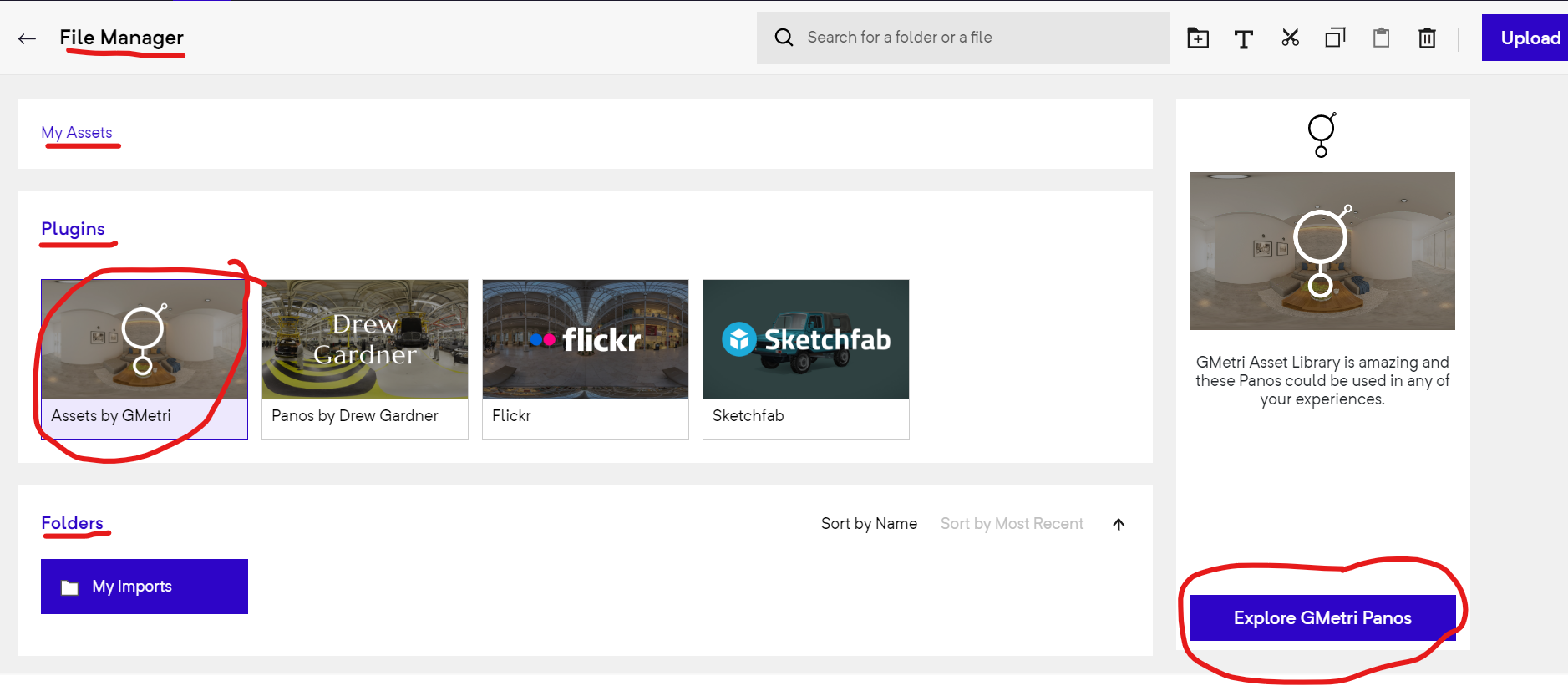
Choosing files from Gmetri Plugins
Step 4: Choose from the folders
Section titled “Step 4: Choose from the folders”You will then be redirected to the assets from the plugin you have chosen. There are folders that provide various options to add 3D models, Audio, GIF, Greenscreen videos, Images, Pano Images, Pano videos and videos.
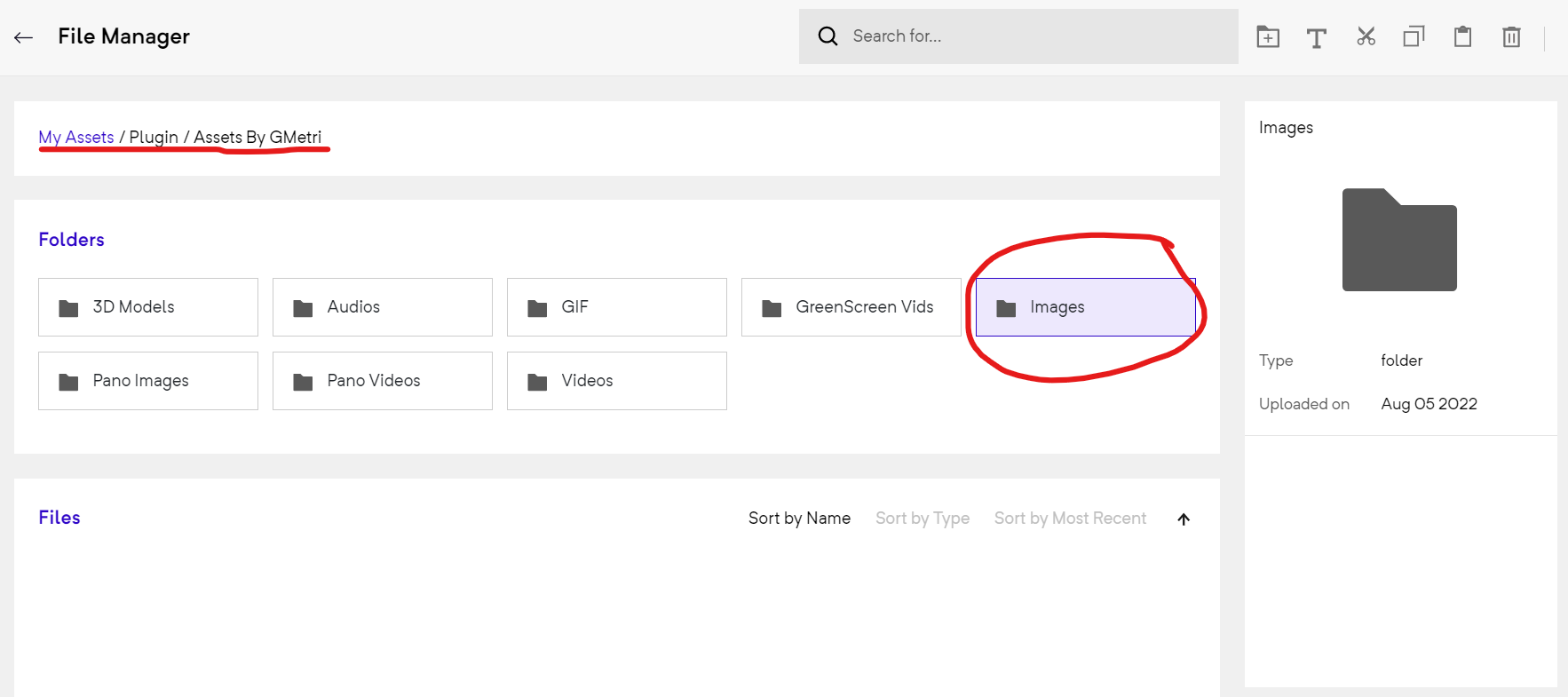
Selecting GMetri Asset
Step 5: Select from imported fileds
Section titled “Step 5: Select from imported fileds”Navigate to Images > Files > Select the image > Import
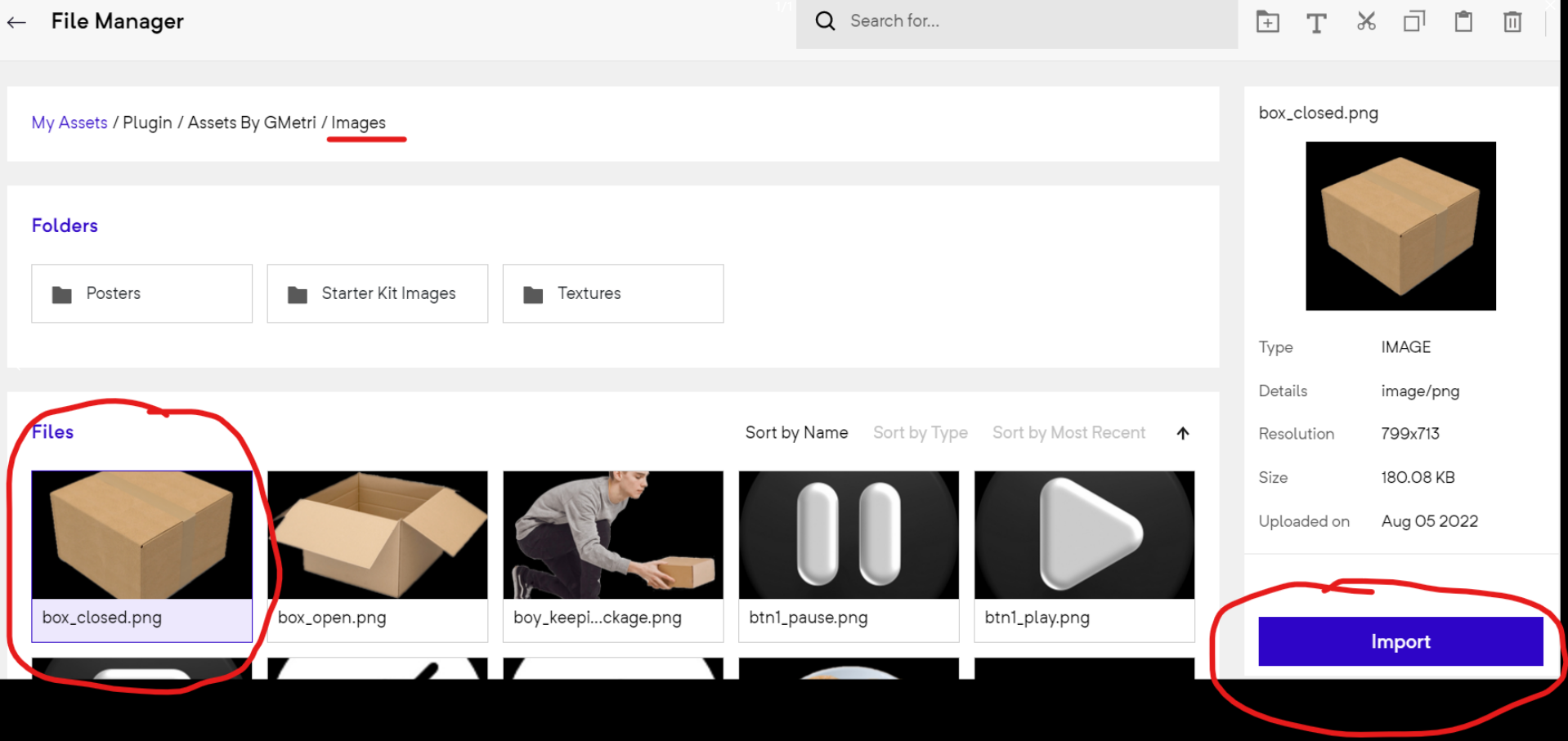
Step 6: Imported files
Section titled “Step 6: Imported files”Once you have imported the file, you will see a pop as below

Importing file pop-up
Step 7: Select and upload your file
Section titled “Step 7: Select and upload your file”You can now go back to the deployment and choose Upload/ Choose file > File Manager > My Assets > Folders > My Imports > Images >Files > Choose the image and click “Select”
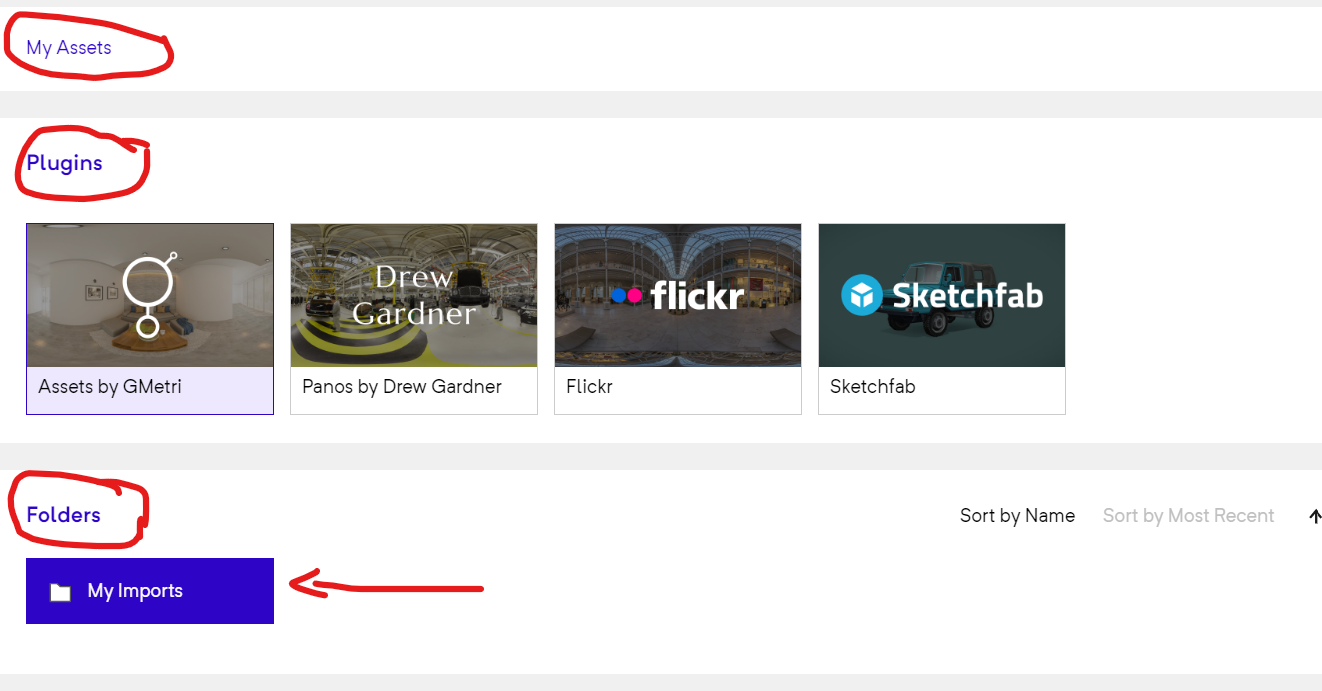
My Imports
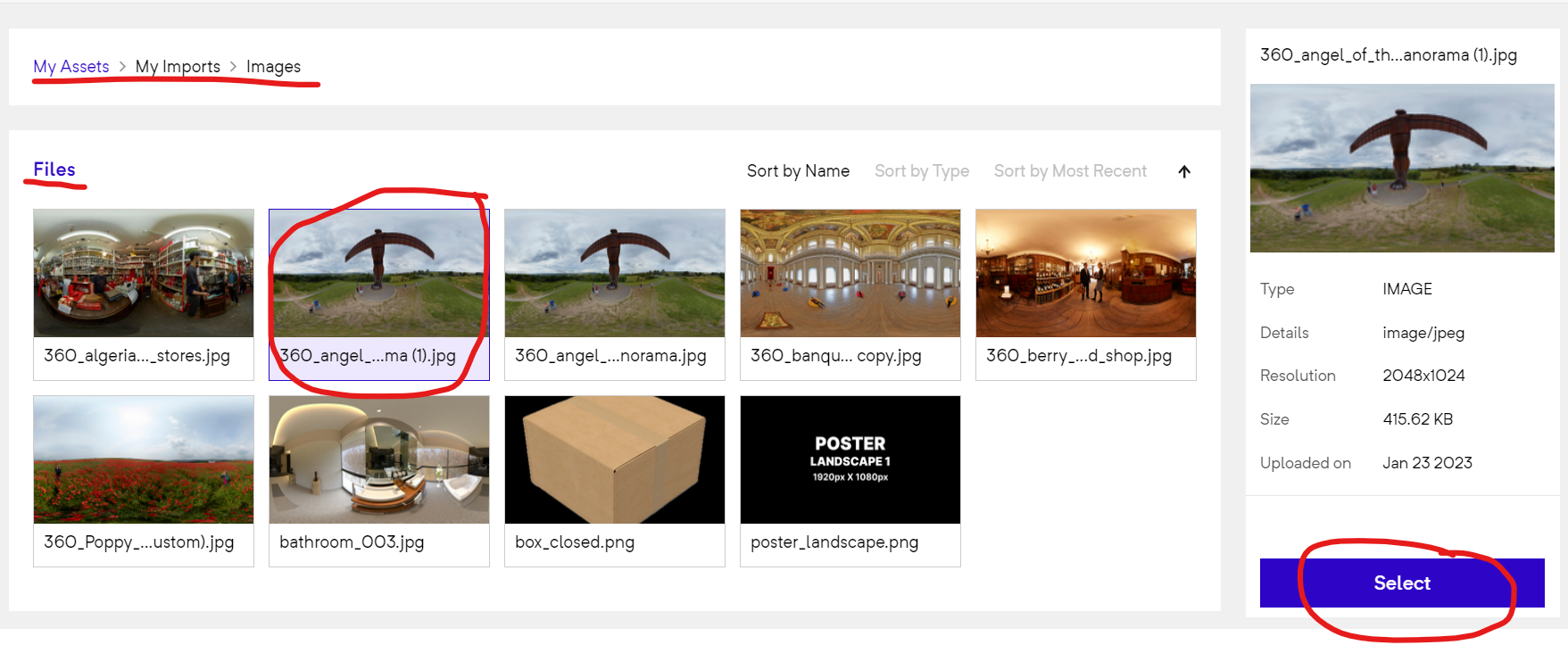
Selecting a file
By uploading files from your computer.
Section titled “By uploading files from your computer.”Step 3: Upload from your computer
Section titled “Step 3: Upload from your computer”By clicking the “Upload” on the right side bar of your deployment, you can add the files from your computer.

Upload
Step 4: Drag and drop or browse your files
Section titled “Step 4: Drag and drop or browse your files”The pop-up box will let you drag and drop or browse files from your computer.
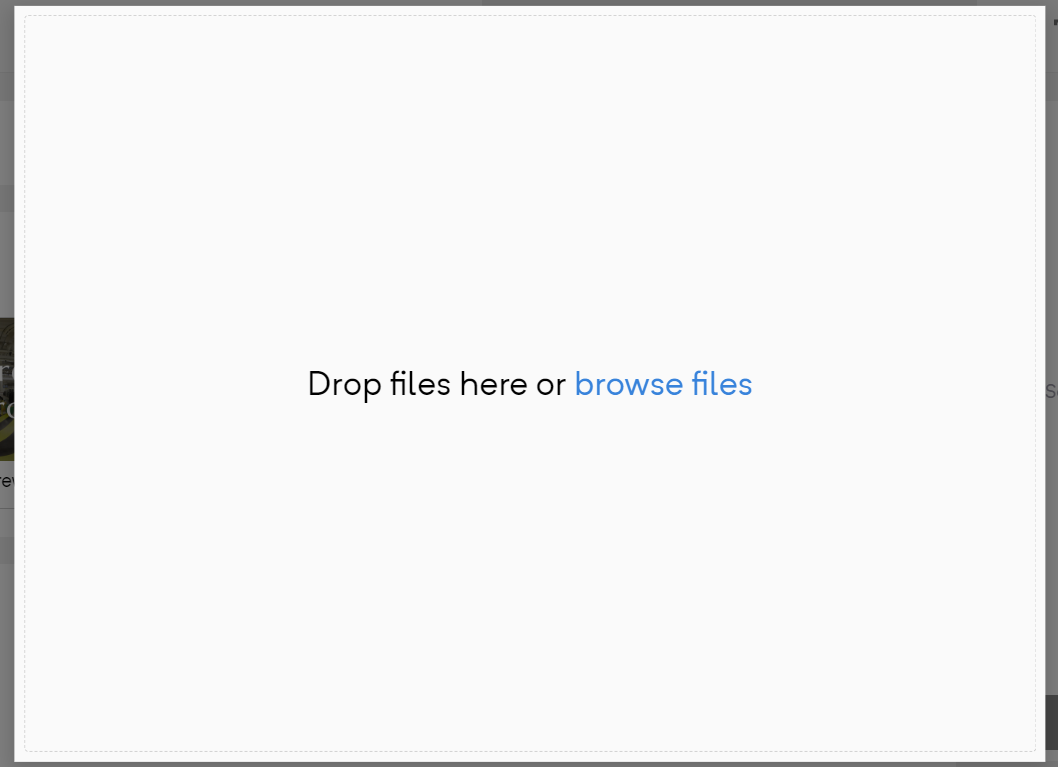
Drop files - Upload
Step 5: Upload a selected file
Section titled “Step 5: Upload a selected file”The selected file then will be available for you to upload.
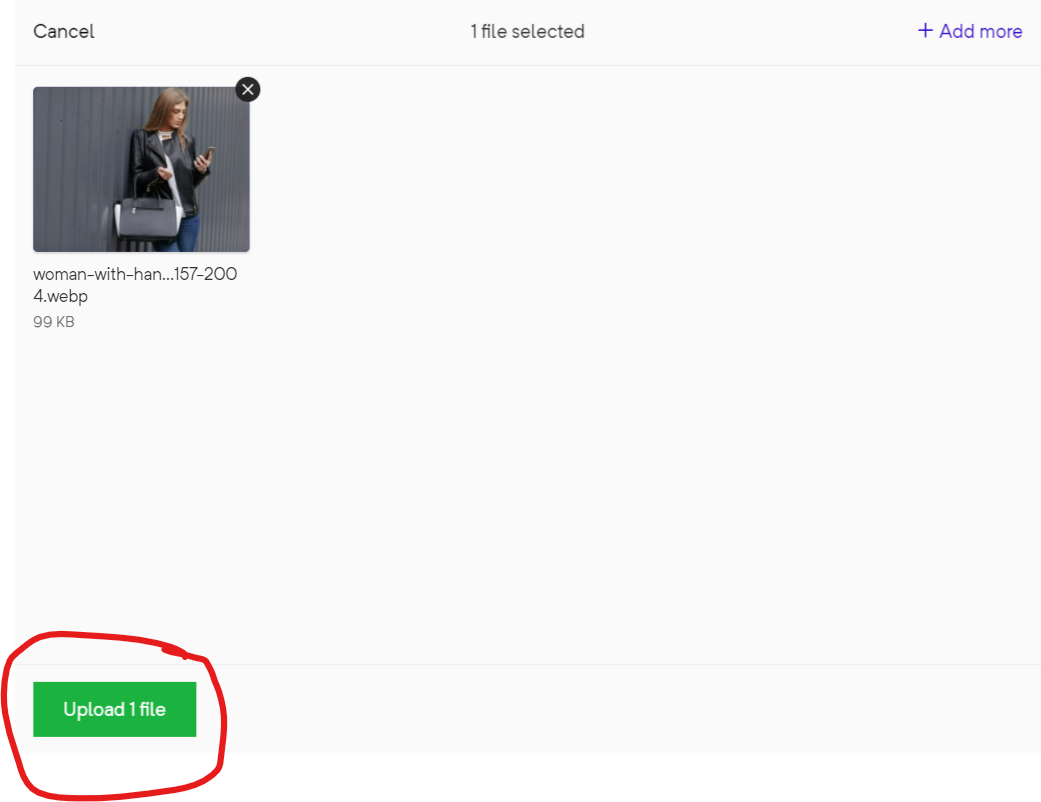
Upload a file
Step 6: Select from files
Section titled “Step 6: Select from files”You can then go to File Manager > Files > Select
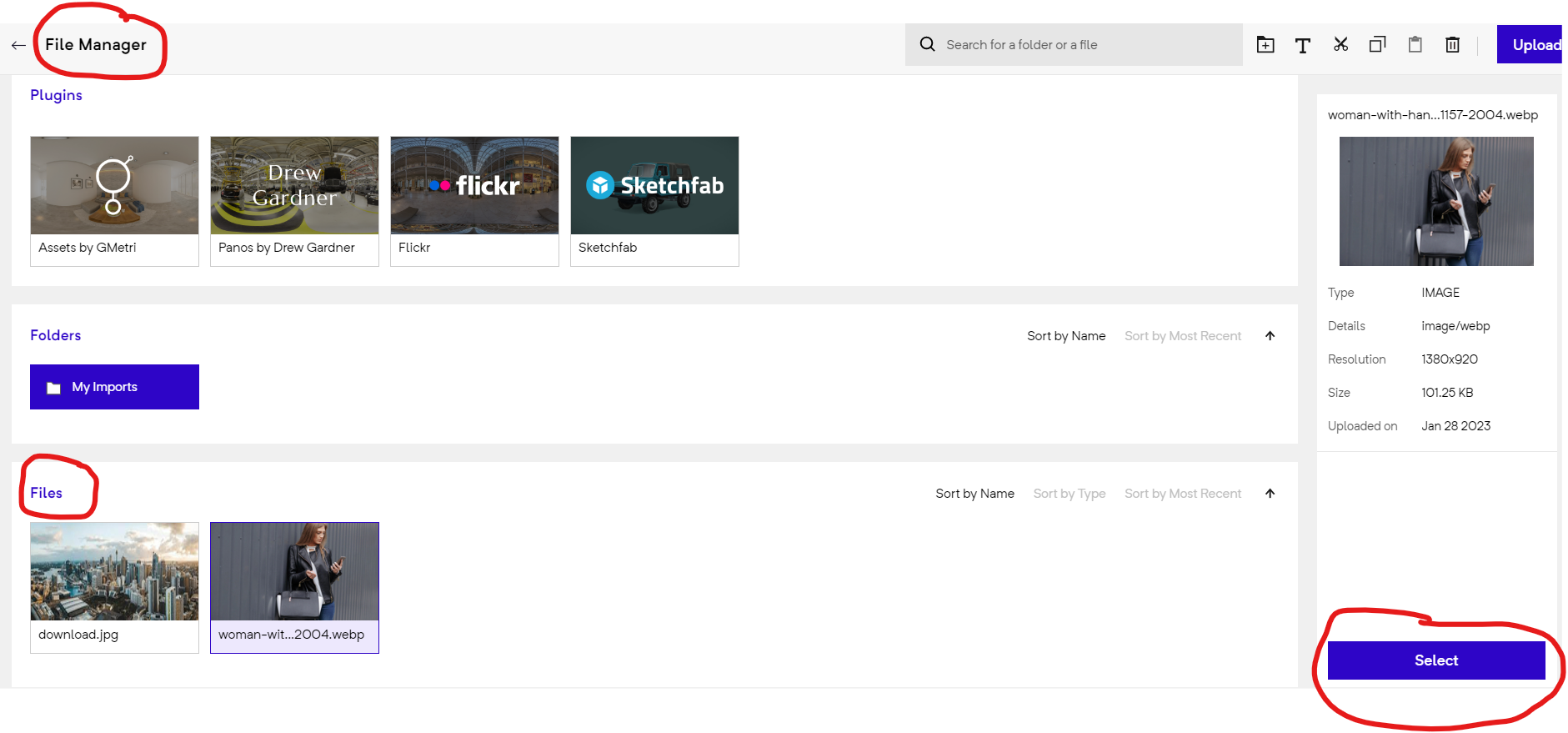
Selecting a file