

Zoom Setup
Here are the steps to link a Zoom meeting or webinar to a live stream:
During a Meeting
Section titled “During a Meeting”Step 1: Start Zoom Meeting
Section titled “Step 1: Start Zoom Meeting”Start the zoom meeting like you usually do
Step 2: Start Streaming
Section titled “Step 2: Start Streaming”When you are ready to link the meeting to a live stream, click on “More” -> “Live on Custom Live Streaming Service”
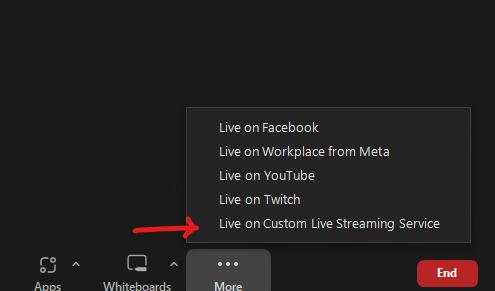
Start Streaming on a Zoom Call
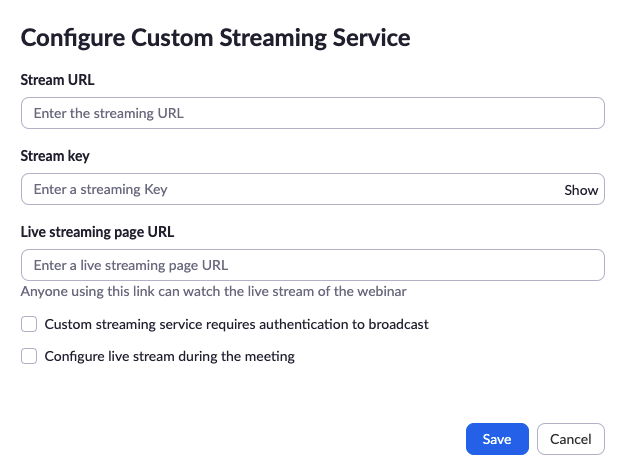
This will open a web page where you can enter the live stream details. You need to enter three things here:
- Stream URL
- Streaming Key
- Live streaming page URL
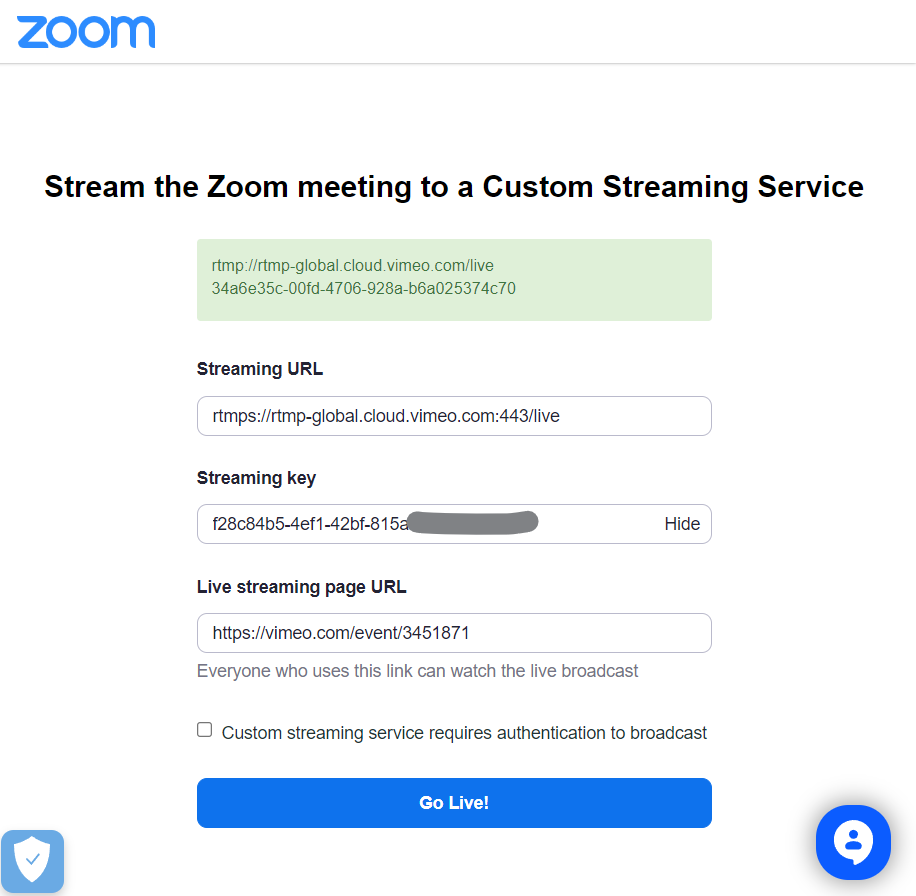
Enter Streaming Details on Zoom
Enter these and click “Go Live!”
Step 3: Continue with the Zoom Meeting/Webinar
Section titled “Step 3: Continue with the Zoom Meeting/Webinar”Your Zoom meeting is now being streamed.
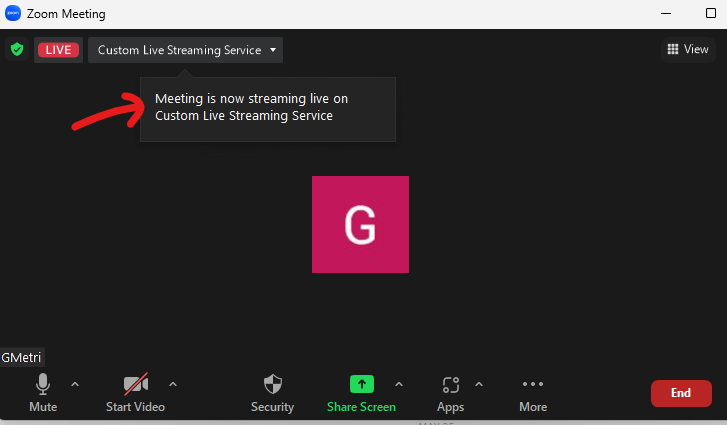
Continue with the Zoom Call
Continue with the Zoom Meeting.
Step 4: Stop Streaming
Section titled “Step 4: Stop Streaming”After you done with the Zoom Meeting and want to stop the live streaming, click on “More” -> “Stop Live Stream”
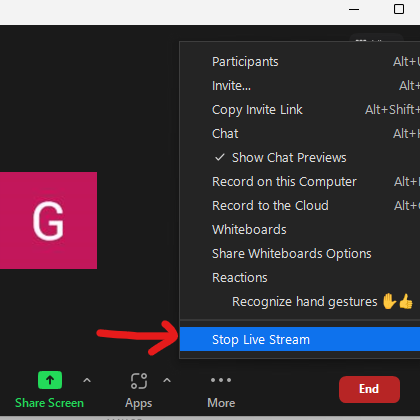
Stop Live Stream
After stopping the Live Stream, you can end the Zoom Call the usual way.
Linking a Zoom Call to a LiveStream during Meeting Setup
Section titled “Linking a Zoom Call to a LiveStream during Meeting Setup”Optionally, you can link a Zoom Meeting/Webinar with Live Stream beforehand.
Follow these steps to setup the meeting details before hand.
Linking a Zoom Call with a LiveStream during Meeting Setup
Things to Remember
Section titled “Things to Remember”- The RTMPS URL is a one-time use URL. Once a live stream ends, you cannot use the same URL again to live stream.
- Only the Host of the Meeting can start and end the live stream.