Headset Testing - WebXR Emulator
Testing experiences designed for Headsets in Desktop Browsers using WebXR Emulator
During the creation process of a headset-based experience, testing the workings in a desktop-based environment is often easier. The design principles for headset experience and desktop experiences differ at times due to certain limitations on headsets.
There is an easy way to test headset-based experiences on desktop devices.
This is ONLY for testing purposes. Experiences should be tested on headset before final deployment.
There are 2 ways to setup the development environment
Section titled “There are 2 ways to setup the development environment”Follow the steps listed here https://github.com/felixtrz/WebXR-emulator-extension#how-to-install-the-newest-version
OR
Follow the steps listed below:
-
Download the package file from here: https://s.vrgmetri.com/gb-web/dev/WebXR-emulator-extension.crx
-
Navigate to chrome://extensions on your browser
-
Enable
Developer Modefrom the top right on your screen -
Drag-n-Drop the downloaded file on this page
-
In the prompt that appears, click
Add extensionbutton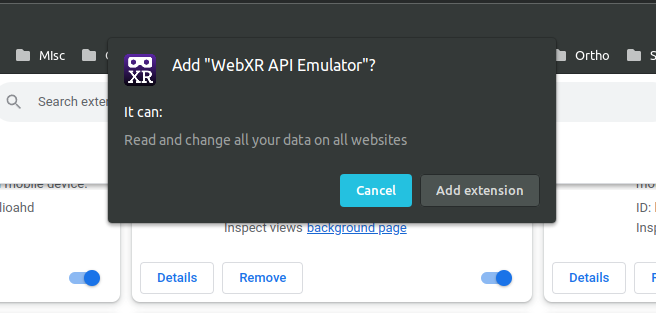
How to use WebXR emulator Extension
Section titled “How to use WebXR emulator Extension”-
Open developer tools on chrome using shortcut
CTRL/CMD + I -
Select
WebXRoption from the tabs -
Select one of the devices from the dropdown
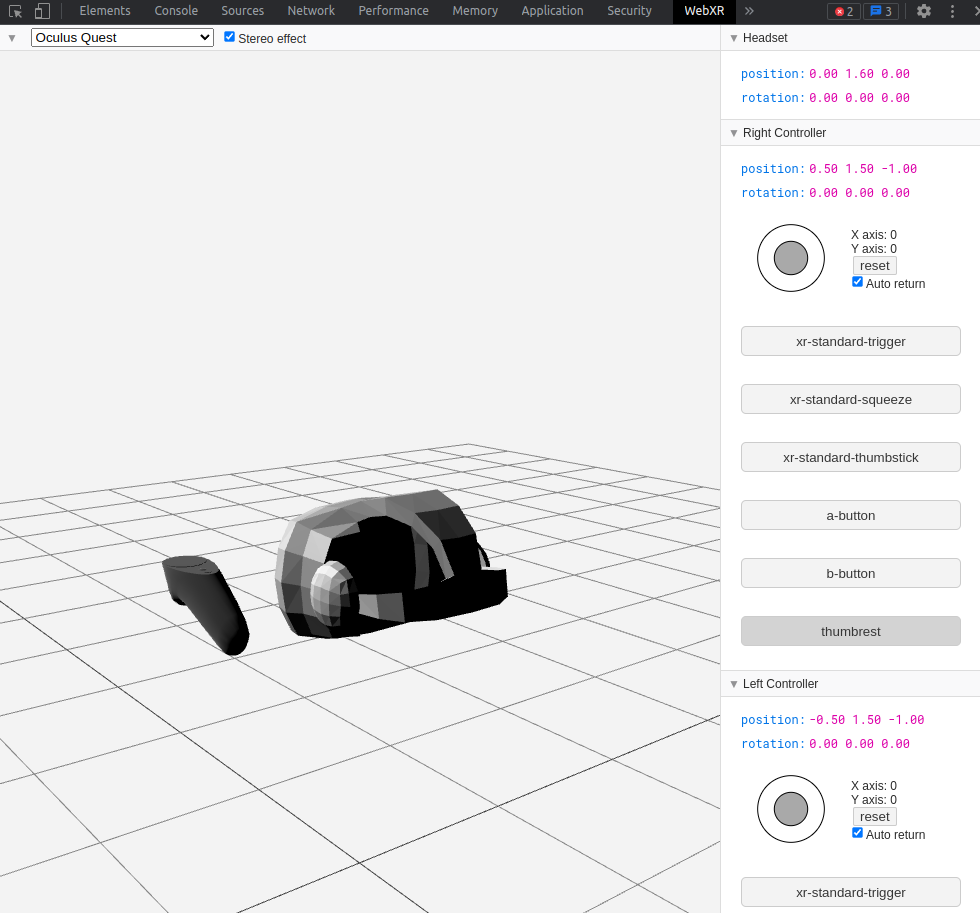
-
Click on the Enter VR button from the hamburger menu (on top-right) from the GMetriXR experience and enter VR mode on your desktop